SureFox Windows Mobileand CE
Securing Web Browsers for Windows Devices

Overview
- Restrict navigation to allowed websites only
- Block access to browser settings (I.E. favorites and security settings)
- Run Internet Explorer in full-screen mode
- Disable address bar
- Disable Tap and Hold menu
- Disable keypad
Supported Platforms

Using SureFox with SureLock
- Make sure SureFox is installed and configured properly on the device
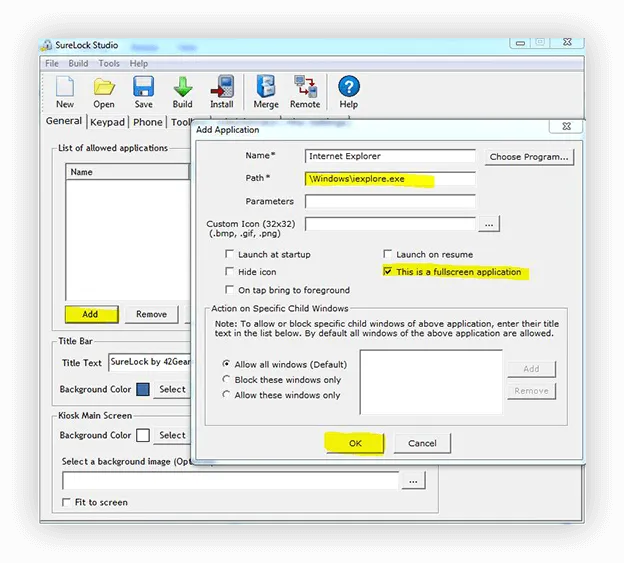
- Launch SureLock Studio on the desktop
- Click on Add and specify Windowsiexplore.exe as an allowed application
- Make sure that the This is a fullscreen application option is also selected