Automatically Redirect Browser to a Website on Android Device Inactivity

By 42Gears Team

Do you have multiple allowed websites on your Lockdown Device? Want Auto Redirect to SureFox Home Screen or one of the allowed websites after an idle timeout?

Use SureFox's Idle Timeout option to force the screen to redirect itself to SureFox Home Screen or a website.
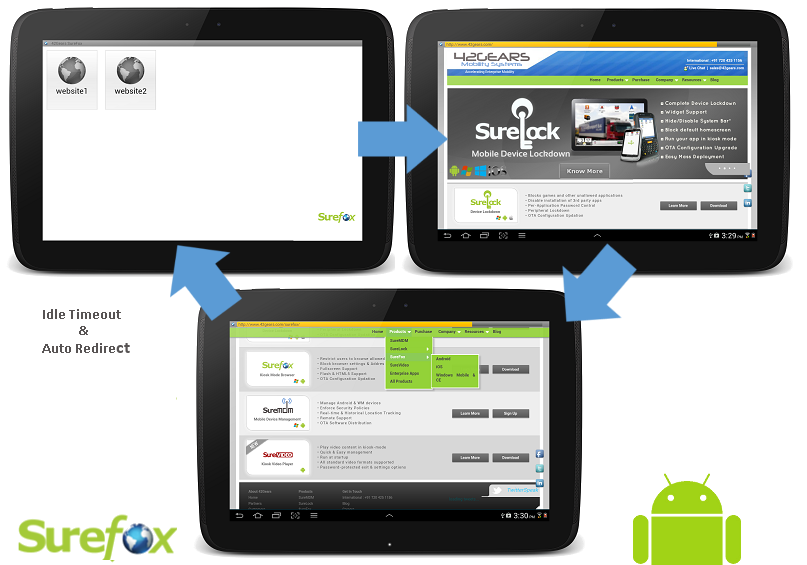
Follow mentioned steps to enable Idle Timeout option:

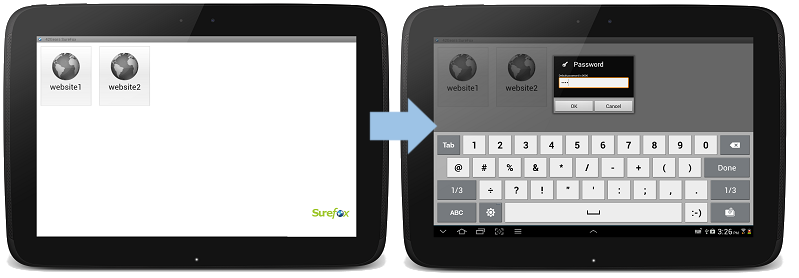
1. Login to your SureFox Admin Settings by tapping 5 times on the SureFox Home Screeen within seconds and using default password – 0000 (four zeros)

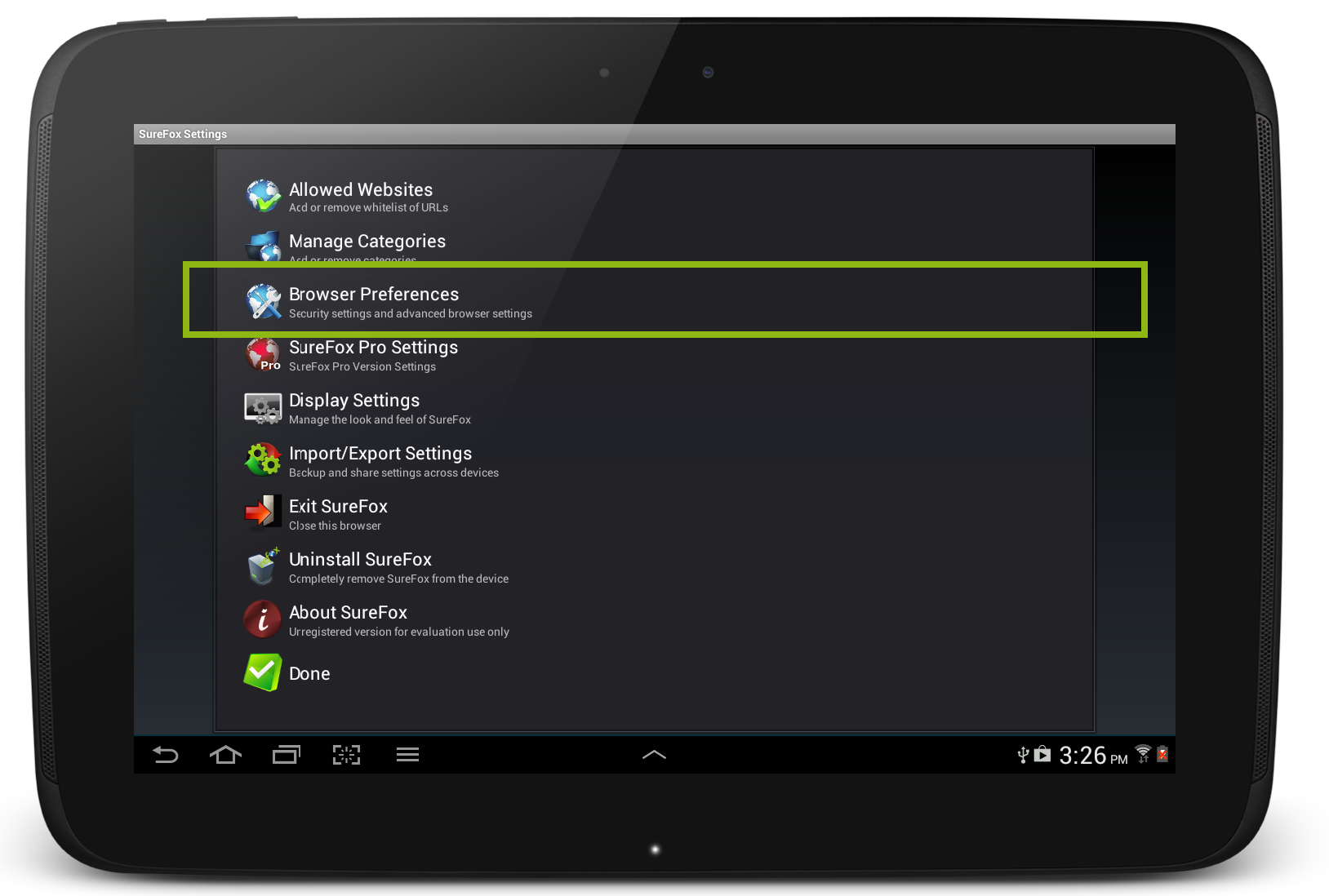
2. On SureFox Settings Screen, tap on Browser Preferences option

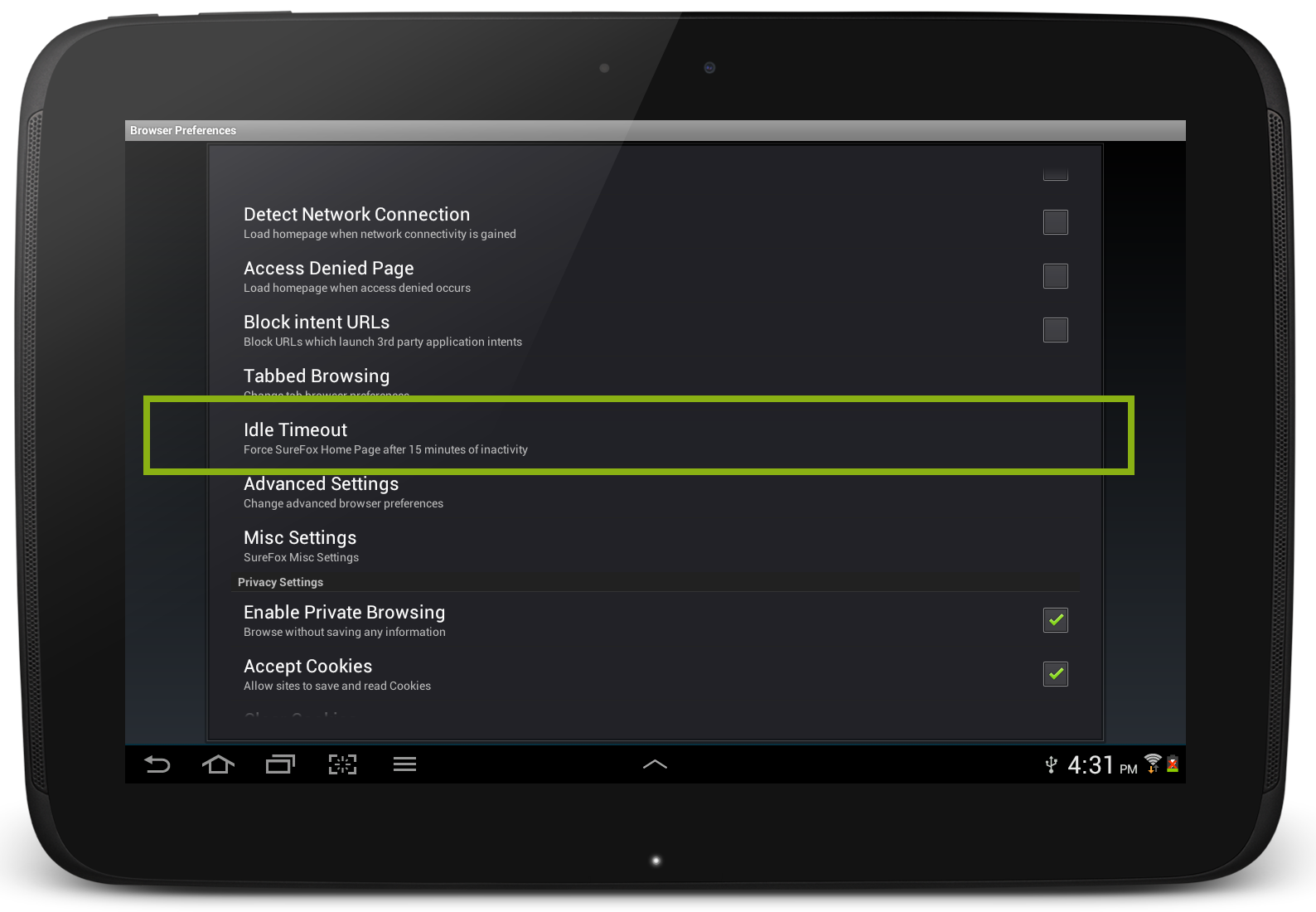
3. On Browser Preferences Screen, tap on Idle Timeout option

4. On Idle Timeout pop up window, enter a value and select between Seconds and Minutes
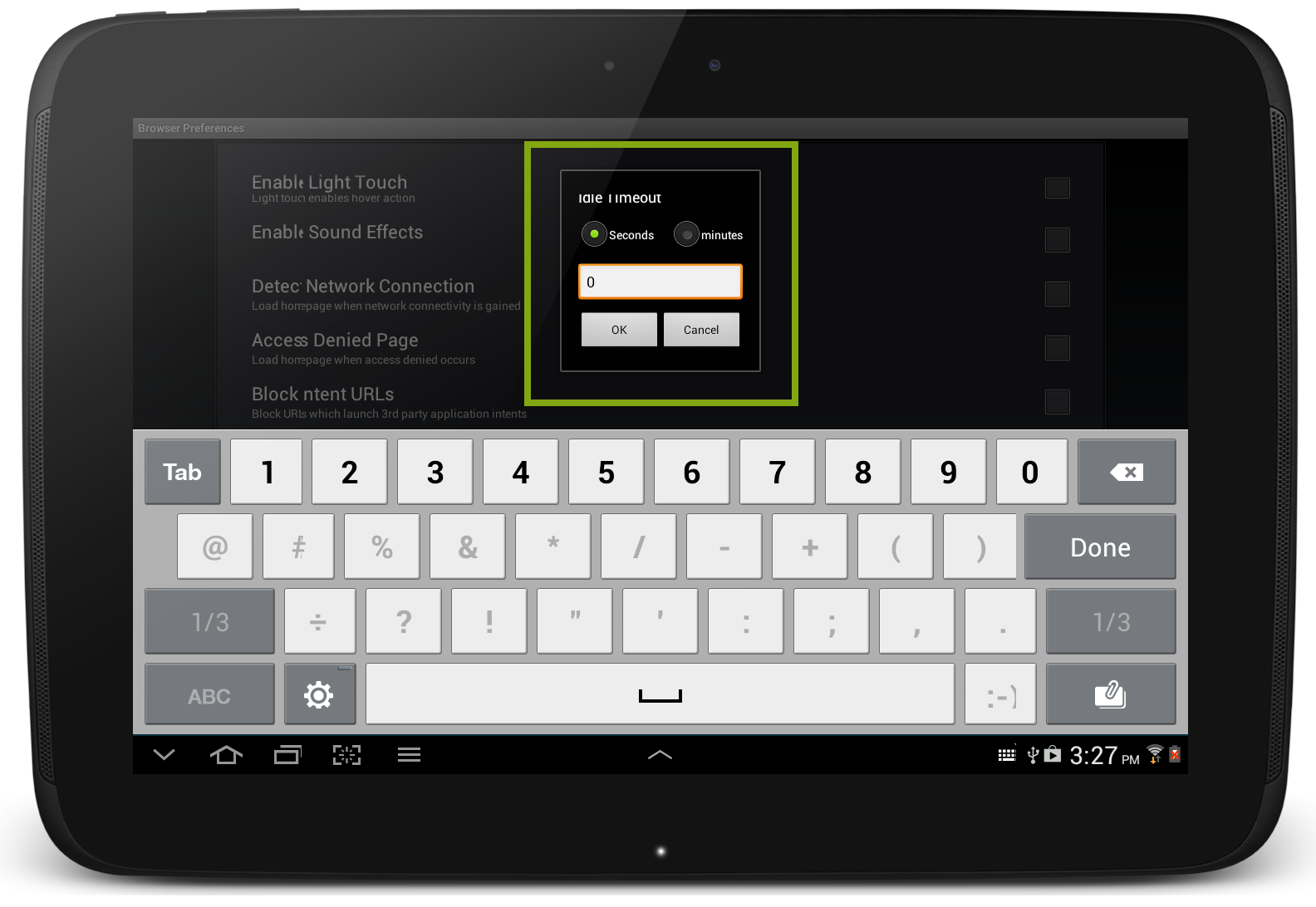
5. Tap on Done to complete

Note : If you want to redirect the screen to one of the allowed website then you can set the website as the Homepage by using Error Redirection option while adding or editing the allowed websites.
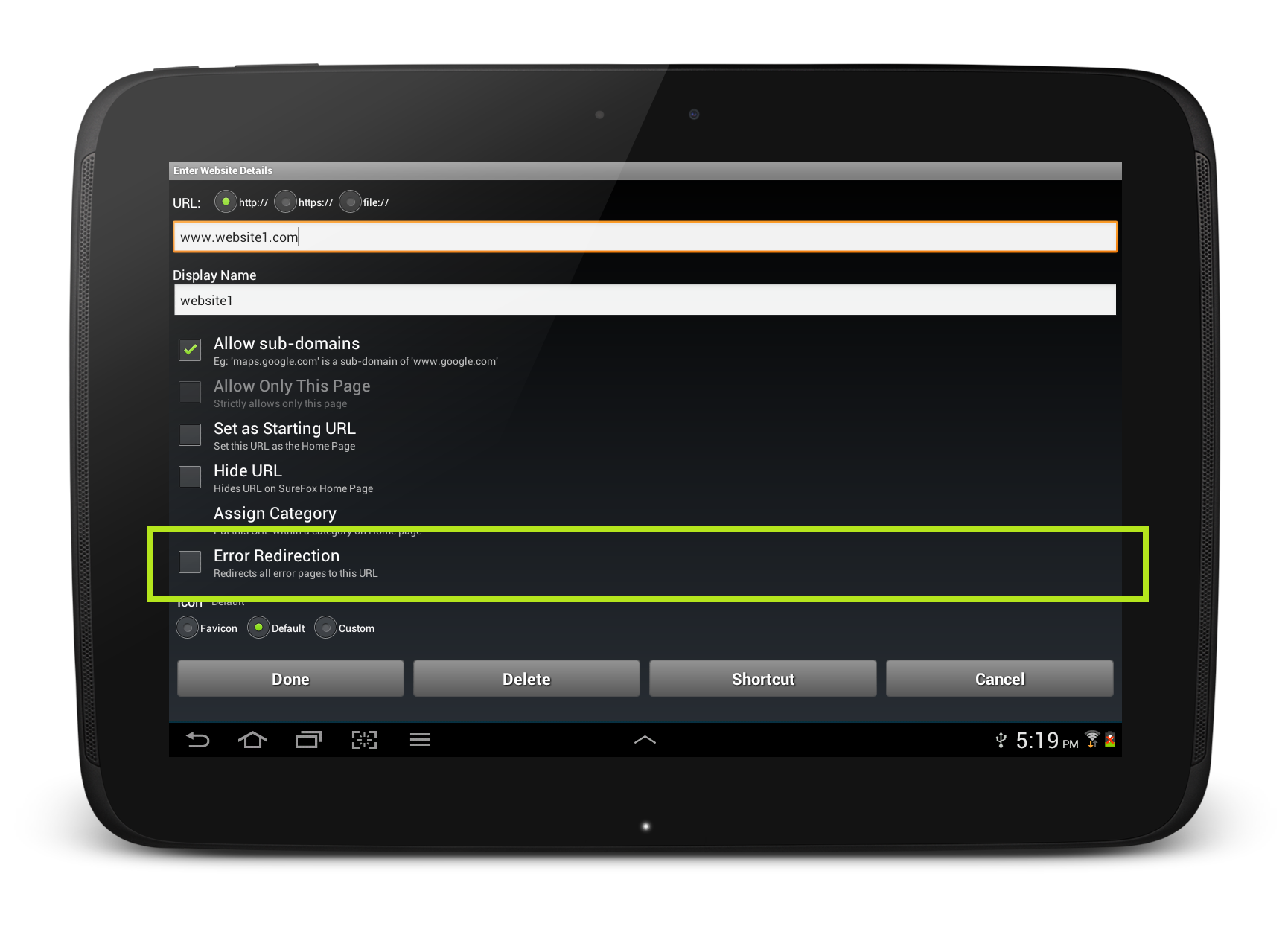
allowed_website

To explore more features, visit SureFox Homepage.

“Written with expertise and passion to help you understand the topic better.”

4
42Gears Team – Content Author
Updated on: January 13, 2023 | Published on: June 19, 2013

Subscribe to our newsletter

Stay updated with the latest news, articles, and resources on enterprise mobility.

Weekly articles
Actionable insights delivered once a week. No noise.
No spam
Your privacy matters. Unsubscribe anytime.