How to Migrate From Samsung SureMDM Nix Agent to KNOX Nix Agent?

By 42Gears Team
Applies to:
Product SureMDM
Platform Samsung Android
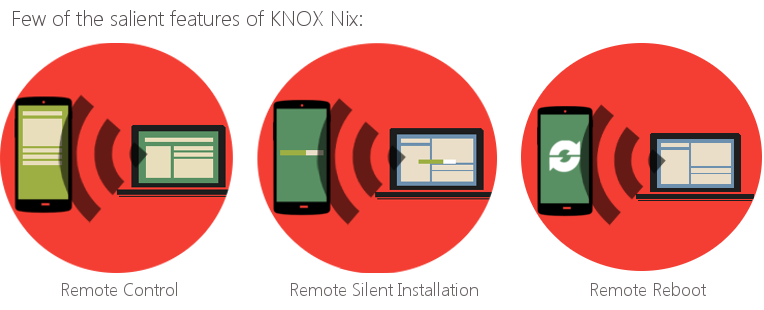
We had two versions of SureMDM Nix Agent; one for Samsung devices (supporting salient features for Samsung devices like reboot, silent installation of applications, etc) and one for Non-Samsung devices. And due to recent policy changes from Samsung, we have now migrated all our Samsung specific changes to our generic version. This means we now have just one version which is compatible with all Android device. This new version makes use of Samsung KNOX SDK to offer salient features for Samsung devices (running Android 4.2.2and above
SamsungNixAgent version 3.14 or 3.17, download the setup, extract the files and follow below mentioned steps to migrate from Samsung Nix to KNOXNix version.
consolidated1

Note: If your device is not locked down with SureLock, skip the first three steps and proceed from step no. 4.
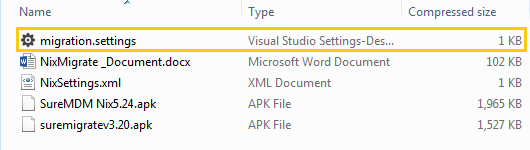
1. Open the file migrate.settings
migration_settings
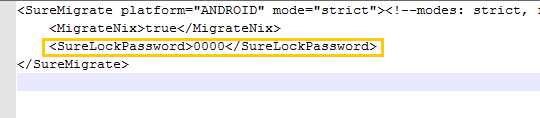
2. Find the node with name SurelockPassword
For example, If password is ‘0000’: 0000
migration_settings_change_surelock_password
3
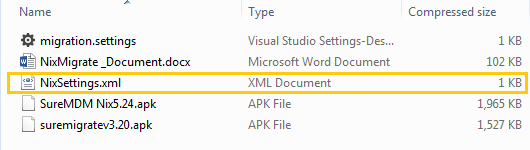
4. Open the file NixSettings.xml from this package in notepad to change the CustomerID and DeviceName in NixSettings.xml
migration_settings_nix_settings
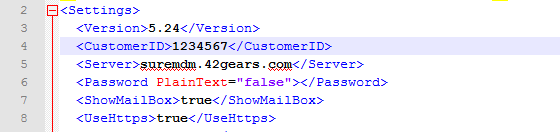
5. Find the node with name CustomerID here and enter your Customer ID
Note: For SureMDM On-Premise version, enter 1 as the value in node with name server.
For example, 1234567
migration_settings_nix_settings_customer_id
6
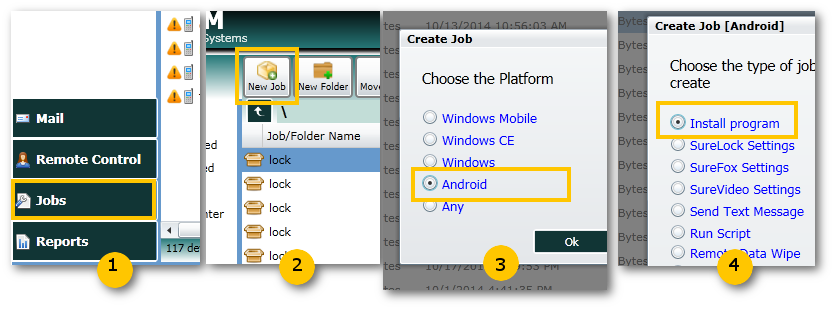
7. Once done saving, login to your SureMDM Web Console and create a new Jobcreate_job
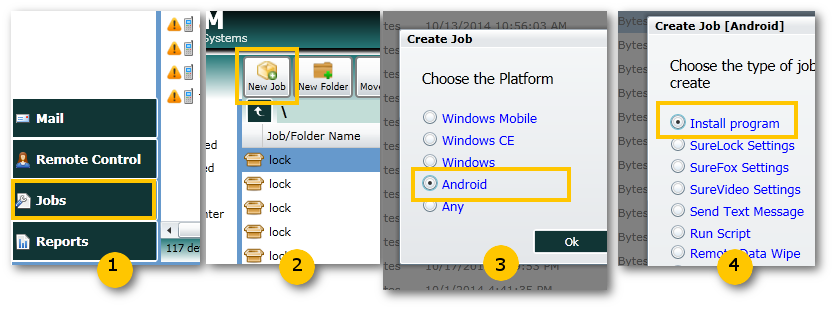
8
SureMDM Nix5.24.apk (Knox) version 5.24,
suremigratev3.20.apk version 3.20,
migrate.settings file and
NixSettings.xml.
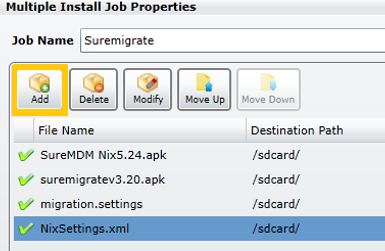
migration_settings_nix_settings_install_job
9. Create another Run Script Job
!#suremdm
launch(com.gears42.suremigrate)
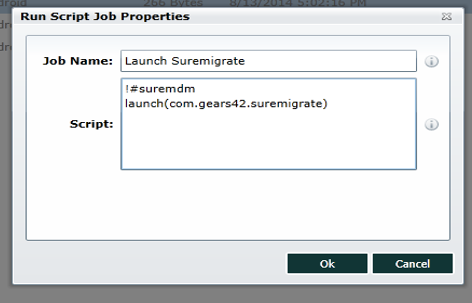
migration_settings_nix_settings_runscript_job
10. Create a Composite Job and add jobs created in step 8 and 9
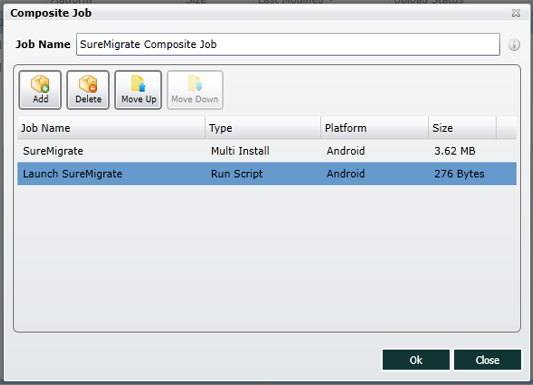
migration_settings_nix_settings_composite_job
11. Select the device from Device List section and Apply the Composite Job
12.
Note: The users would be forced to complete the migration steps as the prompts will not go off the screen unless the users perform all the below mentioned steps.
i. Tap on Activate on Activate device administrator prompt
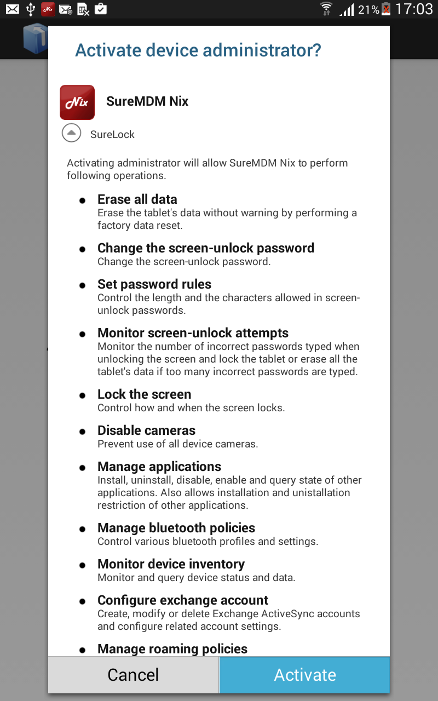
activate_knox_knix

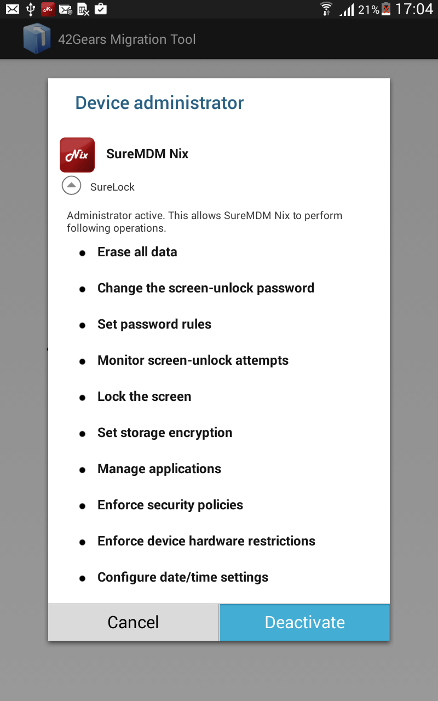
ii. Tap on Deactivate on Device administrator prompt

deactivate_old_nix

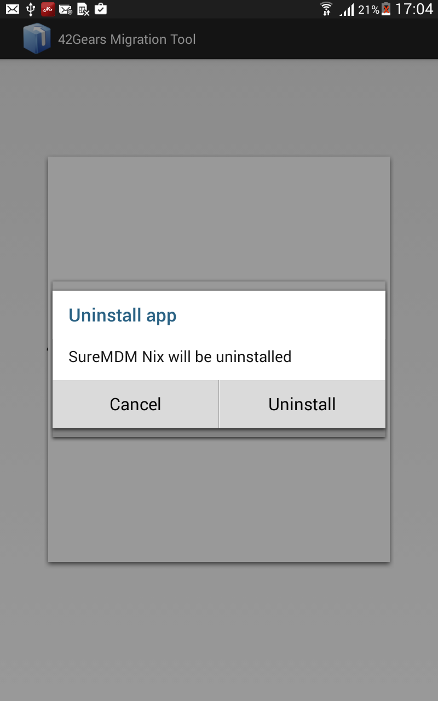
iii. On Uninstall app prompt, tap on Uninstall

uninstall_nix

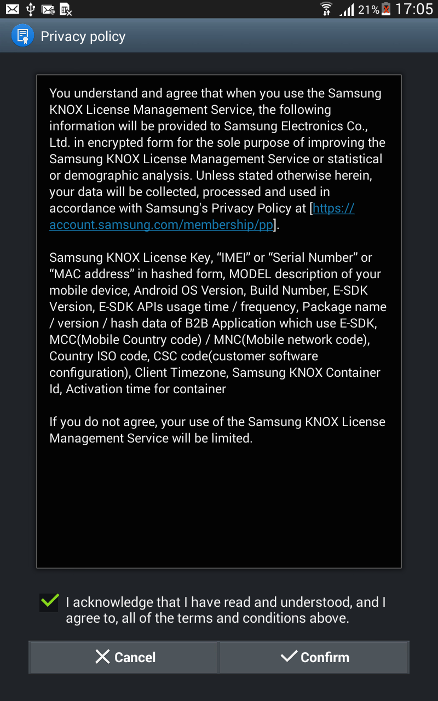
vi.SureMDM Nix once successfully uninstalled, you will get a prompt with License Agreement

knox_nix_license_agreement

v. Go through the details and tap on Confirm
vi. Once done, new KNOXNix
Note: SureMDM will ensure a forced installation of the new KNOX Nix so that the users cannot pass the installation process. The users will get a prompt to install and if denied the prompt would appear after set intervals till KNOX Nix is successfully installed.
SureMDM Trial for 30 Daysclick here
SureMDM Nix Agentclick here
SureMDMclick here

“Written with expertise and passion to help you understand the topic better.”

4
42Gears Team – Content Author
Published on: December 18, 2014

Subscribe to our newsletter

Stay updated with the latest news, articles, and resources on enterprise mobility.

Weekly articles
Actionable insights delivered once a week. No noise.
No spam
Your privacy matters. Unsubscribe anytime.