How to allow auto-update of just a few applications from Google Play Store

By 42Gears Team
Applies to:
Product All Andriod Products
Platform Android

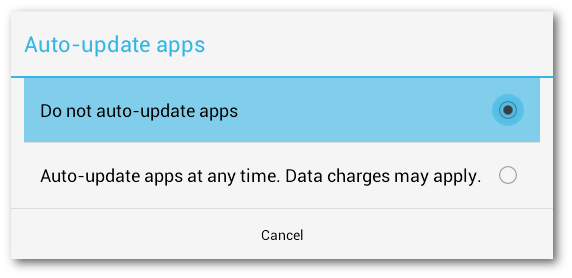
Latest version of Google Play allows choosing applications that you wish to auto update when a new version is released on the Google Play market. In the past there were only two options; set auto update for all applications or for none. This new feature is a good change, if you were forced to disable auto updates on your favorite applications because you preferred not to receive auto updates on certain other applications.

google-auto-update

This change in Google Play affects all the applications downloaded from Google Play in your device as this new change automatically sets all the applications into Auto-update mode. For 42Gears products, if you had specified not to receive auto updates, it is important to access Google Play account and deselect the Auto-update option.

Follow below mentioned steps to disable Auto-update option for an application:

1. Access Google Play on your device

2. On Google Play Home, tap on Menu option on the top left of the screen
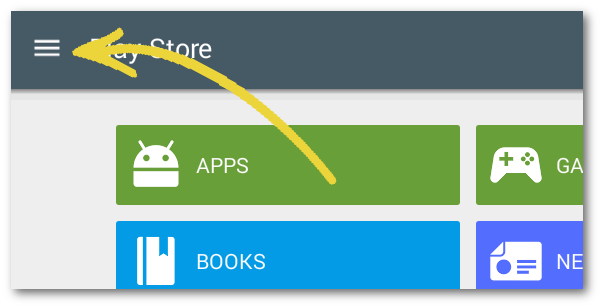
play_store_more

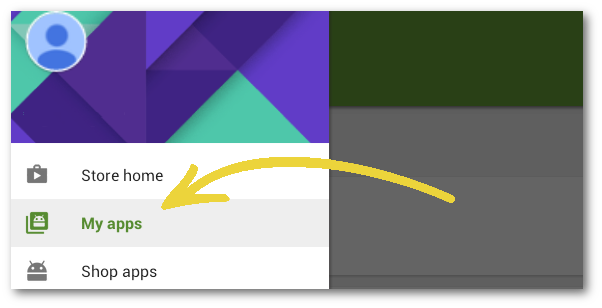
3. From the menu, tap on My apps

play_store_my_apps

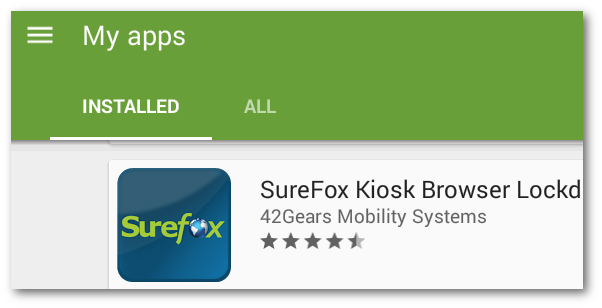
4. On My apps screen, under Installed tab, tap the application you want to change the auto update option

play_store_installed

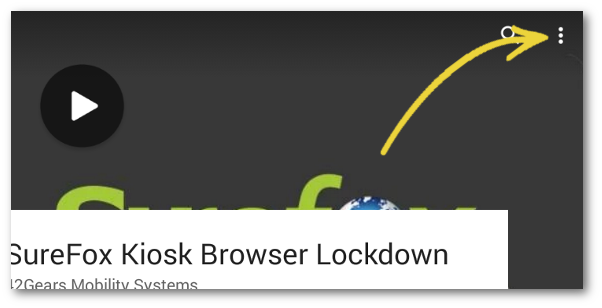
5. Once on App Home, tap on more beside Search icon on top right of the screen

play_store_menu

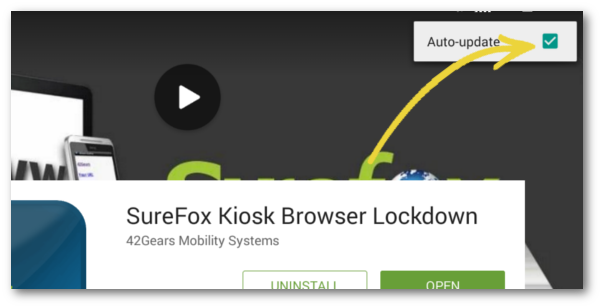
6. On Auto-update prompt, tap on it to deselect

play_store_auto_update_uncheck

7. Now, you will not receive auto updates for this specified application.

To contact us, click here

To know more about our products, click here.

“Written with expertise and passion to help you understand the topic better.”

4
42Gears Team – Content Author
Published on January 21, 2015

Subscribe to our newsletter

Stay updated with the latest news, articles, and resources on enterprise mobility.

Weekly articles
Actionable insights delivered once a week. No noise.
No spam
Your privacy matters. Unsubscribe anytime.