| Applies to: | |
| Product | SureFox/SureLock |
| Platform | Android |
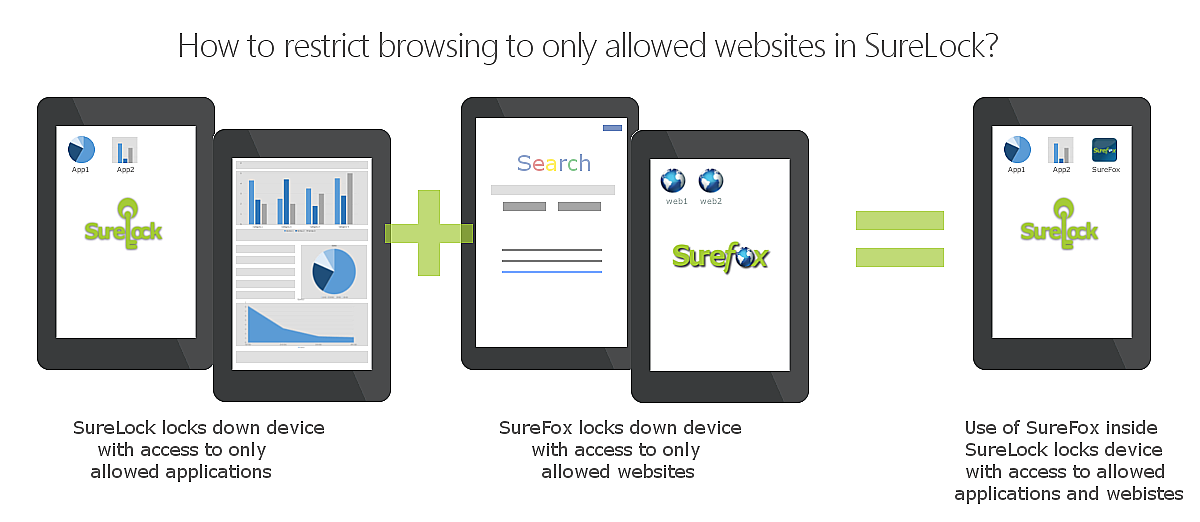
To use SureLock and SureFox Basic to lockdown your Android device with access to only allowed applications and allowed websites, follow below mentioned steps:
1. Download SureLock and SureFox(Please note that there are no separate versions for SureFox Basic or SureFox Pro. There is only one SureFox version that you can install from Google Play or 42Gears website. Based on the activation code, it will either work as SureFox Pro or SureFox Basic.)
SureFox
SureFox Settings by tapping on SureFoxHomescreen
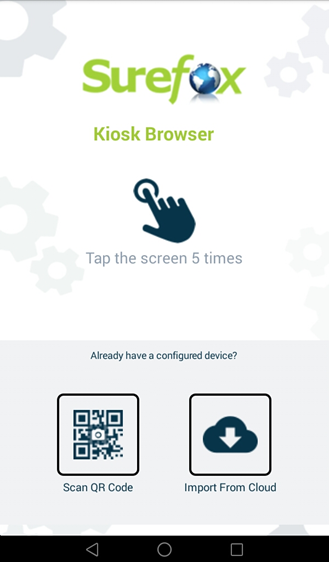
SureFox Settings screen, tap Allowed Websites
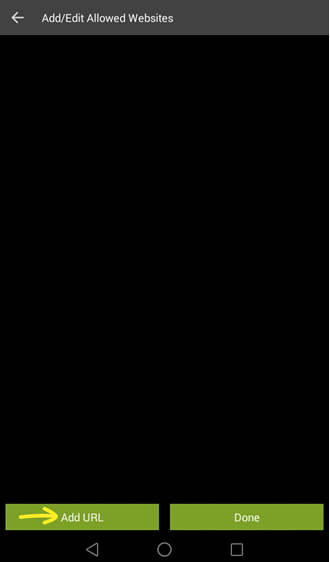
Add/Edit Allowed Websites screen, tap Add URL
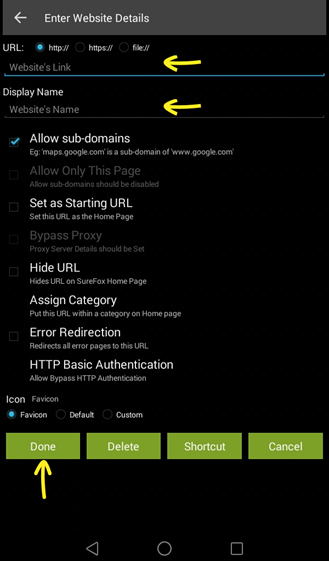
Enter Website Details screen, enter the details of the website and tap Done
Exit SureFox to exit SureFox
SureLock
SureLock Settings by tapping on SureLockHomescreen
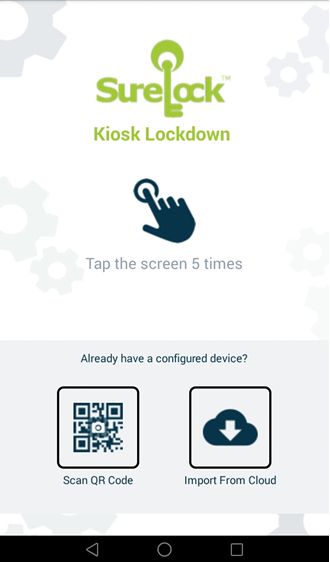
Admin Settings screen, tap Allowed Applications
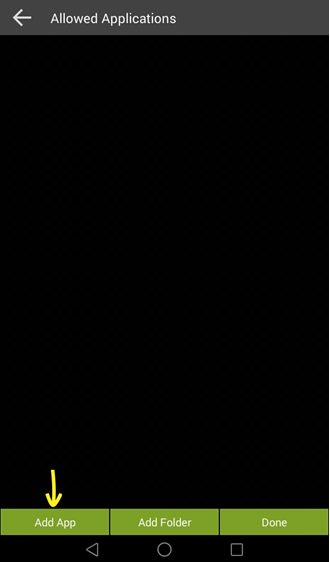
Allowed Applications screen, tap Add App
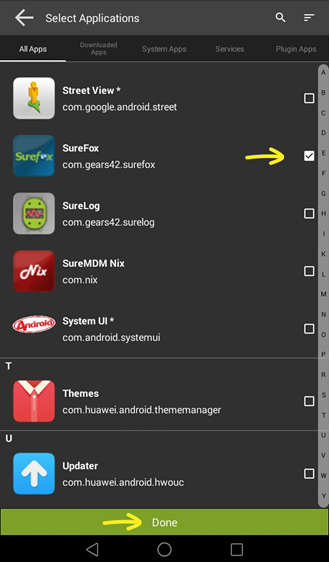
SureFox and tap Done
Admin Settings screen, tap Done
SureLock Homescreen, SureFox
techsupport@42gears.com or chat with our representative by visiting www.42gears.com
SureLock for Android, click here
SureFox for Android, click here