How to Add Custom Toolbar to SureFox Kiosk Browser?

By 42Gears Team

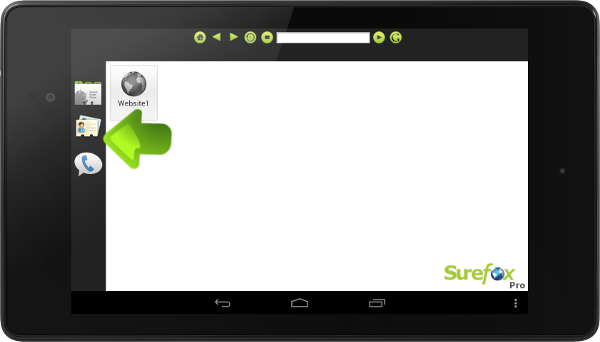
SureFox Lockdown Browser supports toolbar to perform quick actions. You can enable a default toolbar or add a customized toolbar of your own. You can enable and dock the toolbars on top, bottom, left and right sides of SureFox Home Screen. You can also use SureFox Javascript APIs to create shortcuts to your favorite websites and applications.
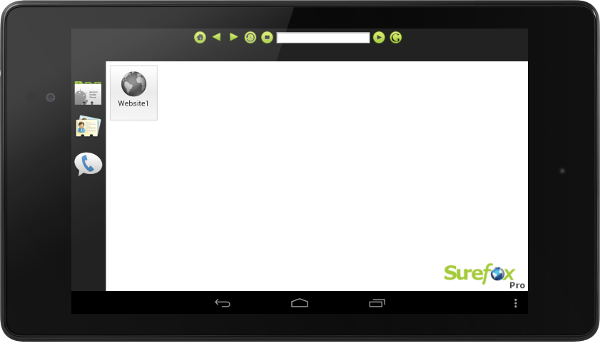
vertical_horizontal_toolbar

How to enable toolbar in SureFox:

1. Access SureFox Settings

2. Tap on Display Settings

3. Scroll down and tap on Toolbar Settings.

4. Tap on Enable Toolbars to display toolbar options.

5. Now select the toolbar location, toolbar type and the size to be displayed.

Note: You can disable a toolbar by selecting None from the toolbar type.
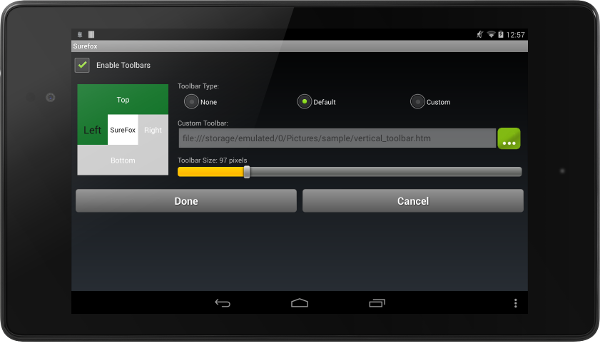
toolbar settings

6. To display a custom toolbar, you can select the Custom option and browse the html file with custom toolbar layout. To create the html file, use the sample code for default SureFox Toolbar included below and customized it to suit your requirements.

7. Once you have finished configuring the toolbar, tap on Done to save the settings.

8. Toolbar will now be displayed on your SureFox Home Screen

HTML Code for Default Horizontal Toolbar:
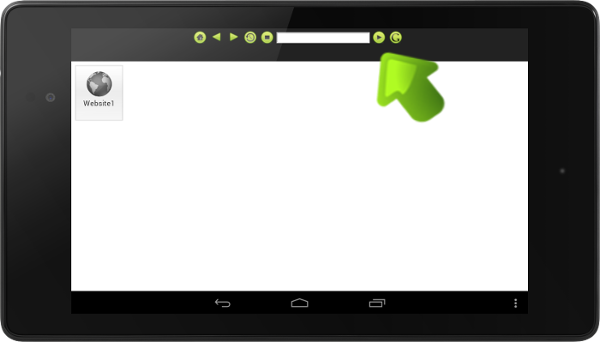
horizontal_toolbar_final


}

“Written with expertise and passion to help you understand the topic better.”

4
42Gears Team – Content Author
Published on October 25, 2012

Subscribe to our newsletter

Stay updated with the latest news, articles, and resources on enterprise mobility.

Weekly articles
Actionable insights delivered once a week. No noise.
No spam
Your privacy matters. Unsubscribe anytime.