Set Idle Timeout to Auto Launch an Application

By 42Gears Team

You have setup a kiosk at a stall in supermarket for shoppers to go through food product reviews and calculate calories. Hence you have allowed two applications; a browser to browse through the products and a calorie calculator. You want every new user at the kiosk to start with the browser first even if the last user has left calorie calculator open on the screen. What do you do?

All you have to do is to access SureLock Settings, set an Idle Timeout and specify an application to auto launch every time the device is idle for the specified time.
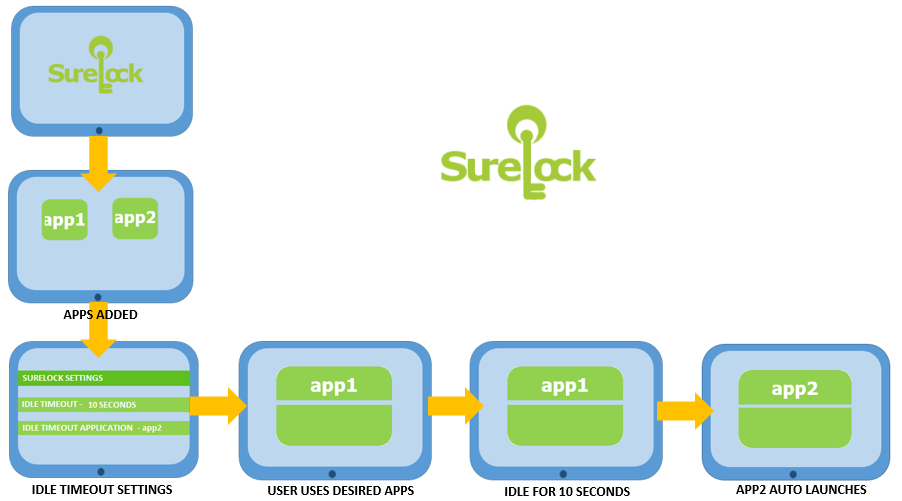
Here is how you do it.

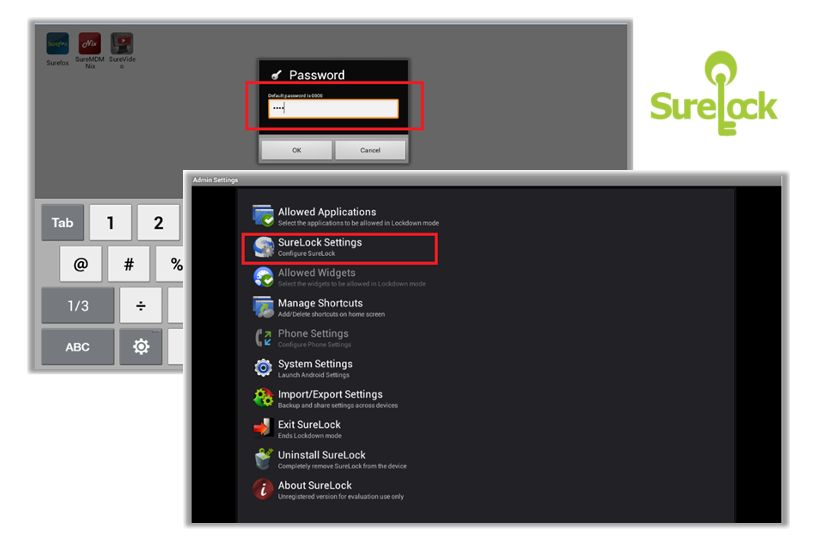
1. Login to your SureLock Settings screen.

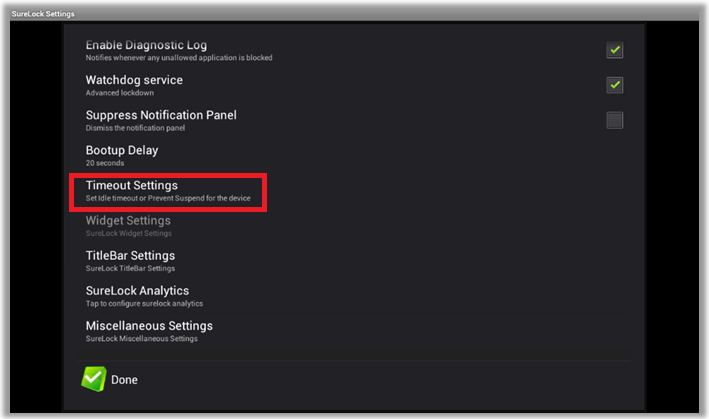
2. Tap on SureLock Settings

3. Tap on Timeout Settings under SureLock Settings
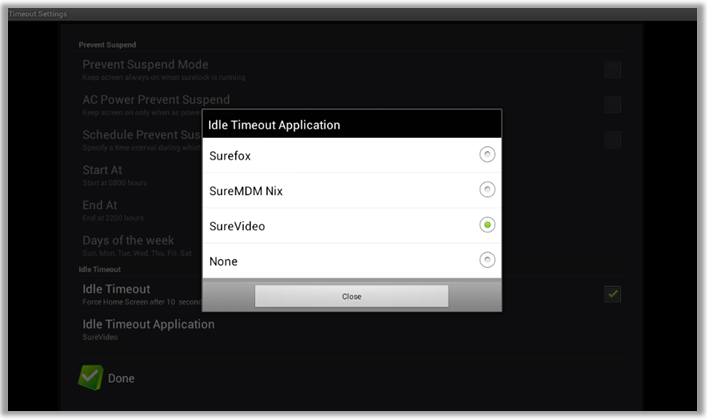
4. Tap on Idle Timeout option to enable and enter the Idle Timeout value in seconds or minutes
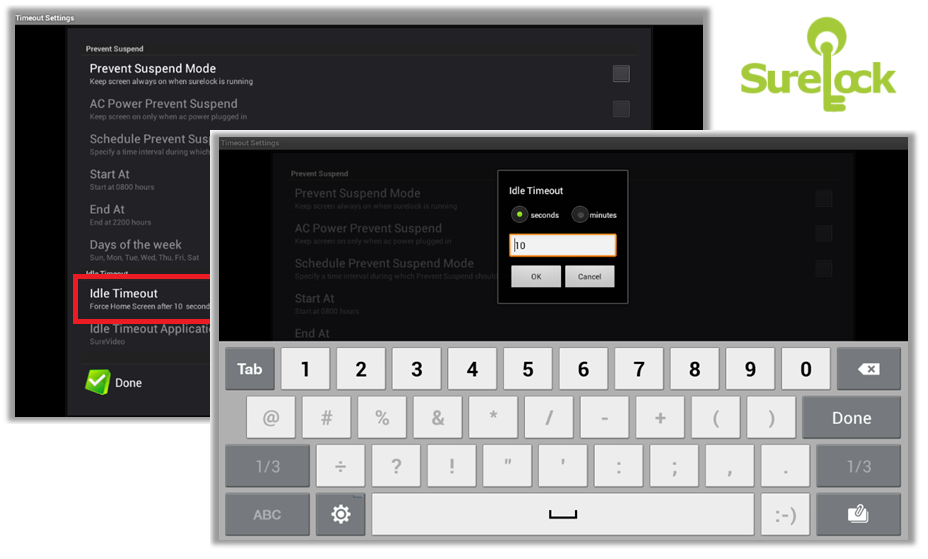
5. Now tap on Idle Timeout Application option to select the application

6. Tap on Done to complete

To Know more about SureLock, visit http://live-42gears-site.pantheonsite.io/surelock/.

“Written with expertise and passion to help you understand the topic better.”

4
42Gears Team – Content Author
Published on May 22, 2013

Subscribe to our newsletter

Stay updated with the latest news, articles, and resources on enterprise mobility.

Weekly articles
Actionable insights delivered once a week. No noise.
No spam
Your privacy matters. Unsubscribe anytime.