Playing Videos at Scheduled Times Using SureVideo for Android

By 42Gears Team

SureVideo now allows you to create more than just a simple videos playlist. Using SureVideo's Schedule Playlist option, you can create multiple playlists and schedule them to be played at specific times.

To enable and schedule playlist in SureVideo, follow these steps:

1. Install and launch SureVideo.

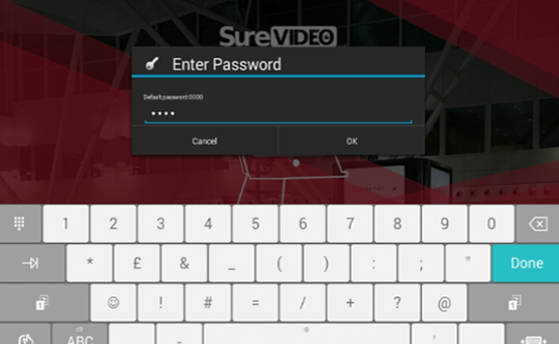
2. Tap the SureVideo Home Screen for 5 times within 3 seconds to launch the password prompt.

3. On the password prompt. enter SureVideo default password as 0000 (four zeros). On successful Login, Main Menu screen appears.
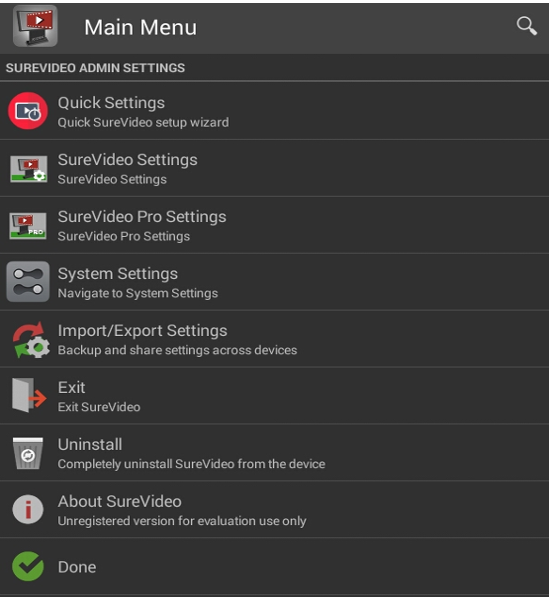
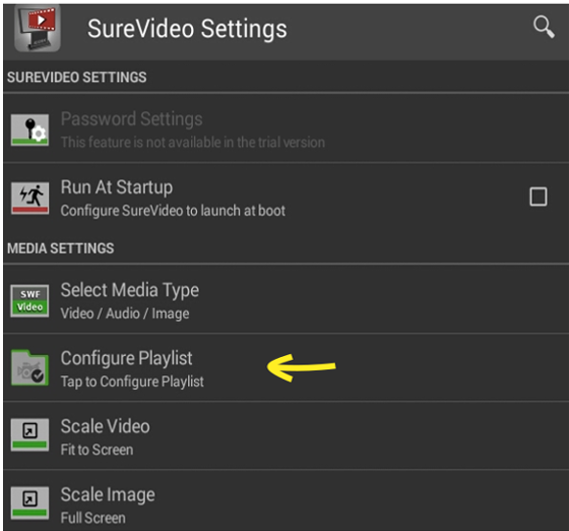
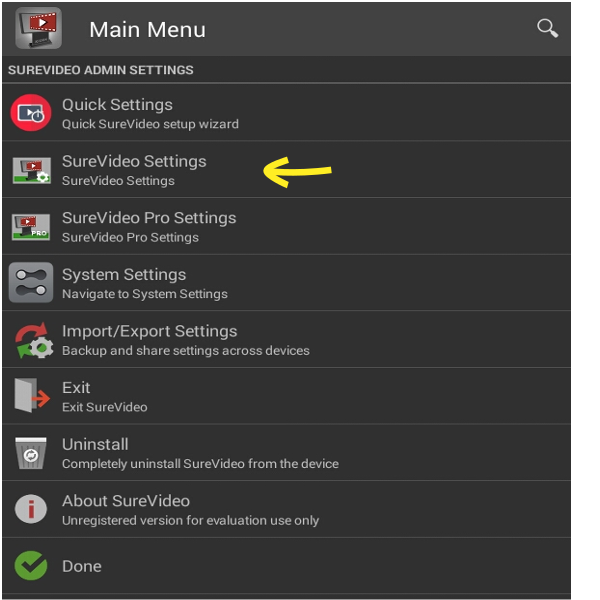
4. On Main Menu screen, tap SureVideo Settings.
5. On SureVideo Settings screen, tap Configure Playlist.

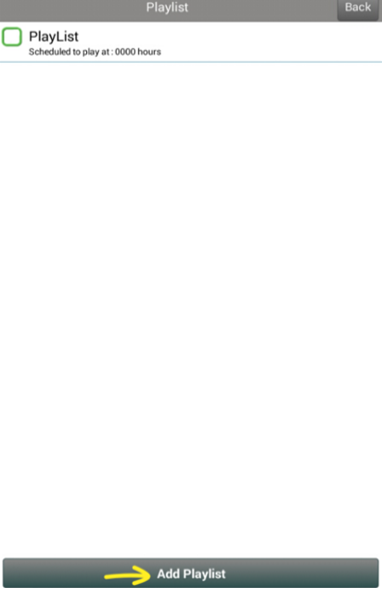
6. On Configure Playlist screen, tap Add Playlist.

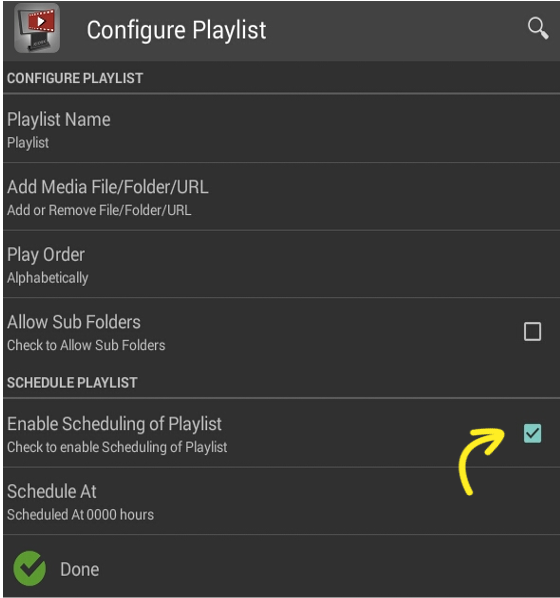
7. On Configure Playlist, enter Playlist Name and tap Add Media File/Folder/URL to add videos.
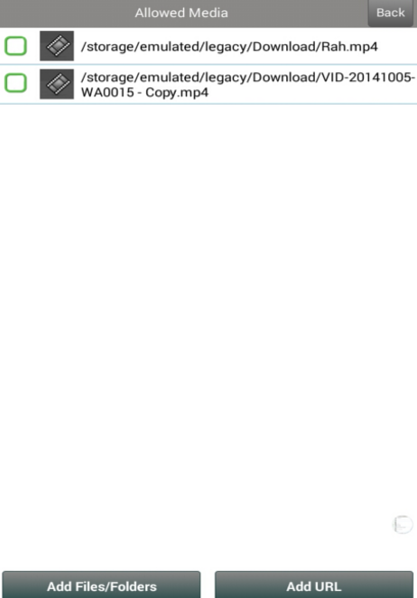
8. Tap and select Enable Scheduling of Playlist.

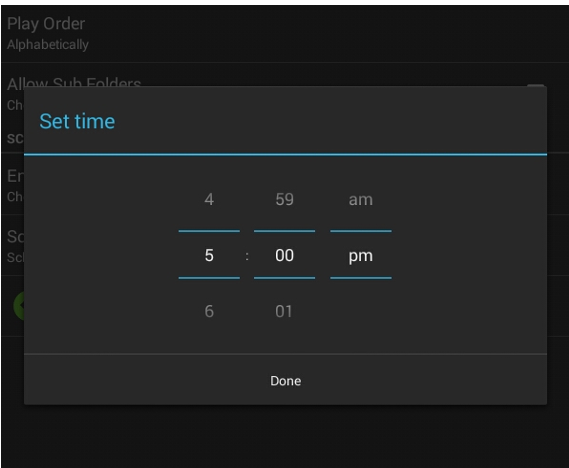
9. Tap Schedule At and specify the time for the playlist to start playing.

10. Tap Done to complete

The scheduled playlist will automatically start playing at the specified time.

Note: You can create as many playlists as possible and use Schedule Playlist option to schedule them at different specified times.

To read more about SureVideo, click here

To download a trial version, click here

For any other queries, send an email to info@42gears.com

“Written with expertise and passion to help you understand the topic better.”

4
42Gears Team – Content Author
Published on July 17, 2014

Subscribe to our newsletter

Stay updated with the latest news, articles, and resources on enterprise mobility.

Weekly articles
Actionable insights delivered once a week. No noise.
No spam
Your privacy matters. Unsubscribe anytime.