setting Single App Mode and silent app installation in SureMDM for iOS devices, you have to activate Supervised Mode on your device. Follow below-mentioned steps to activate Supervised Mode
Note: EnablingSupervised Modewill wipe all data from your device. For security reasons, Apple does not allow to supervise the device ifFind My iPhoneoption is enabled on the device.
Apple Configurator2
Apple Configurator 2

Prepare
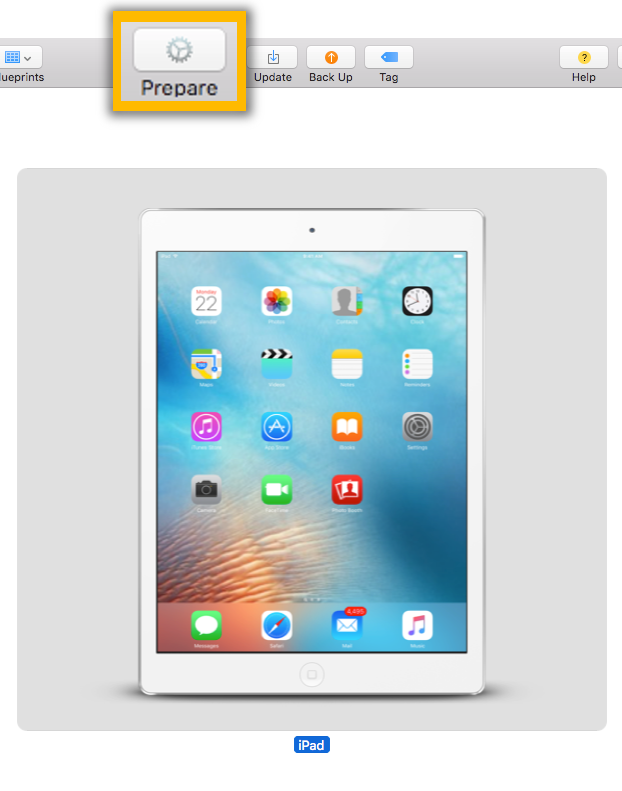
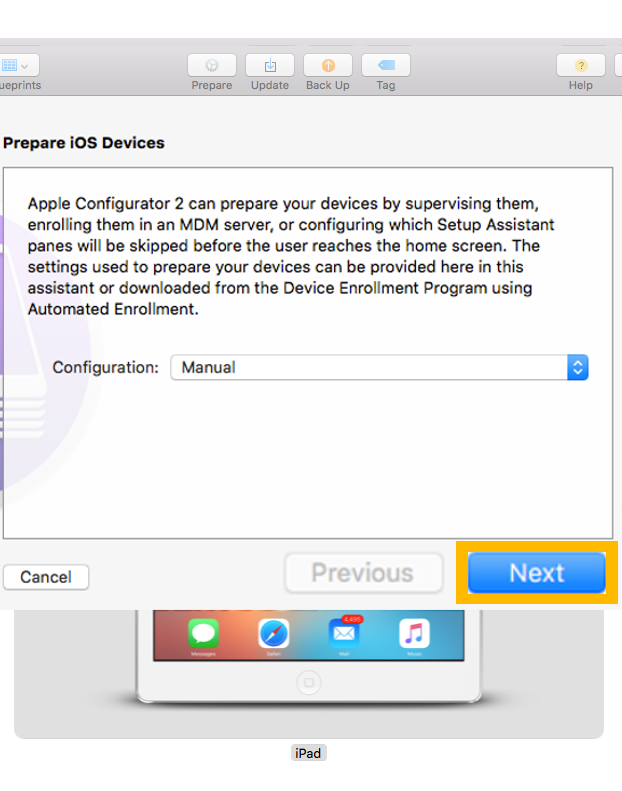
Manualfrom the dropdown and click on Next
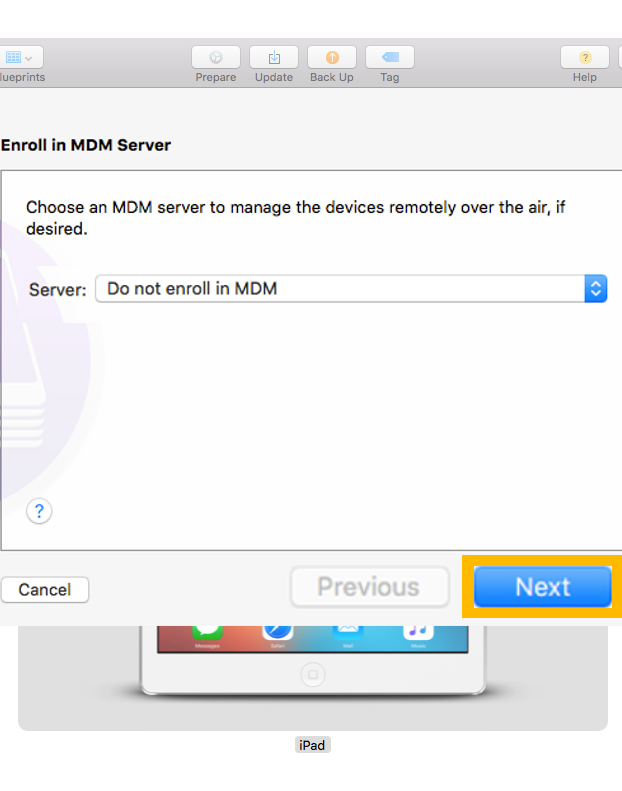
Do not enroll in MDMfrom the dropdown and click on Next
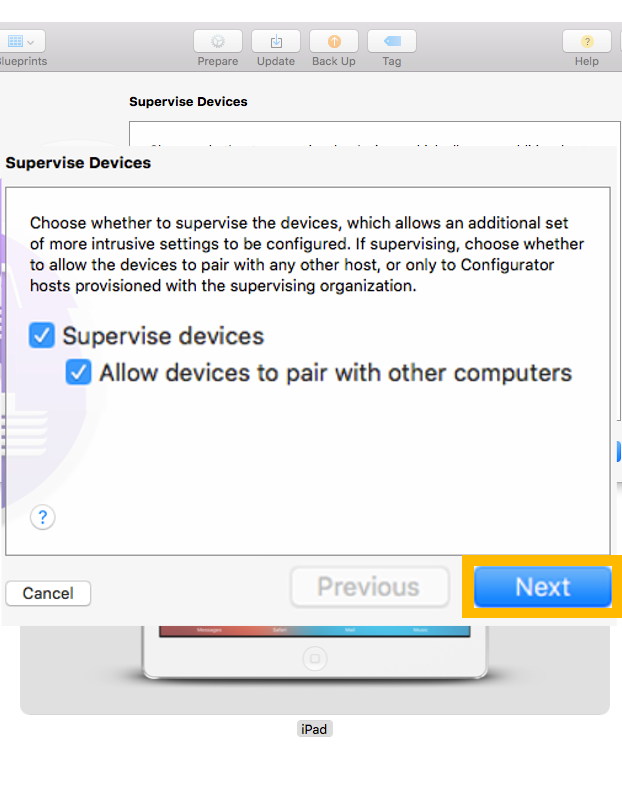
Supervise Device and Allow devices to pair with other computer and click on Next
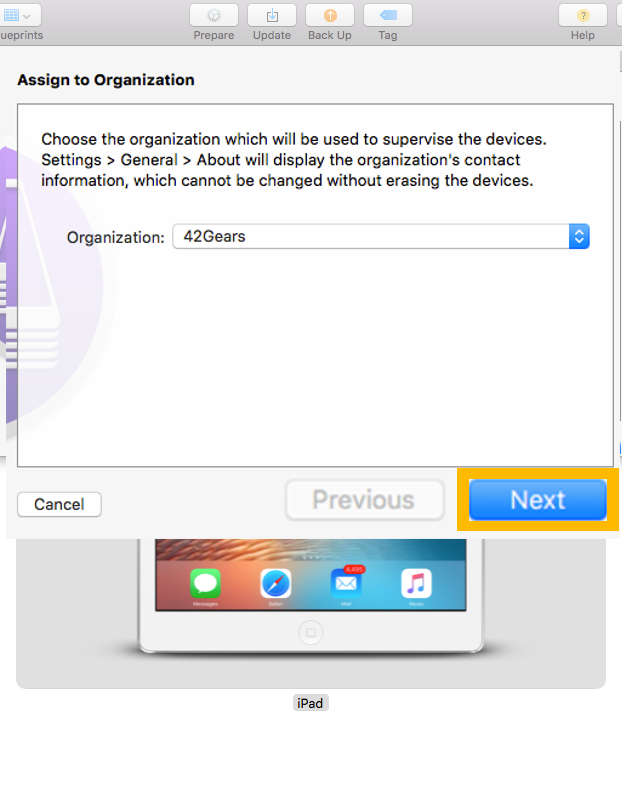
Setup Assistant and click on Prepare
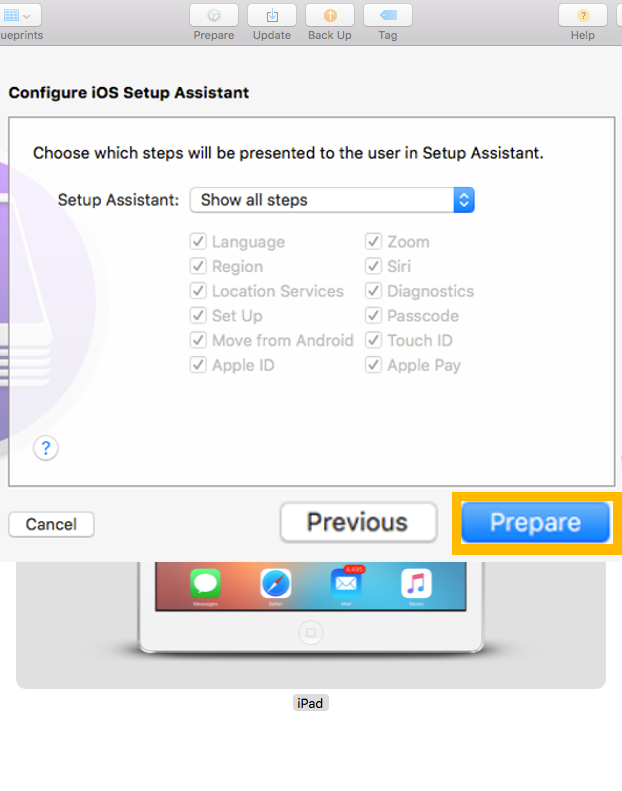
Mode