| Applies to: | |
| Product | SureVideo |
| Platform | iOS |
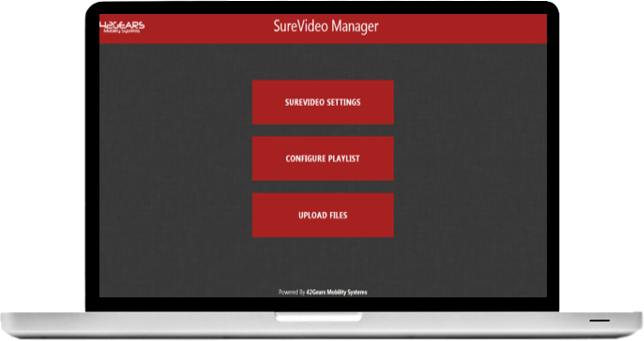
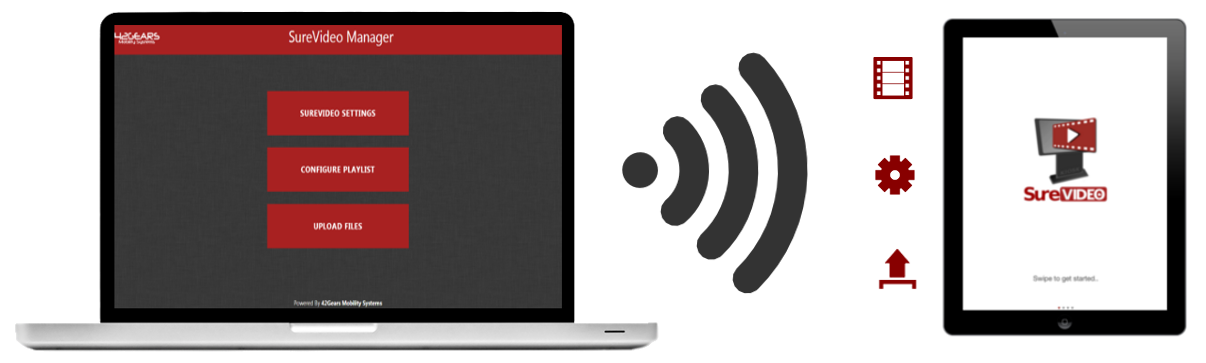 Here is what all you can do with new SureVideo Web Interface:
1. Configure SureVideo Settings2. Configure Playlist
3. Upload Files
How to access SureVideo Web Interface?
To access SureVideo Web Interface, follow below mentioned steps:
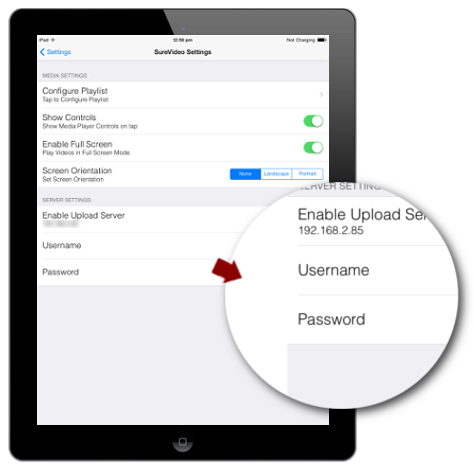
1. Note the IP Address of the device.
If you are not sure about the IP Address of the device, note it from:
Here is what all you can do with new SureVideo Web Interface:
1. Configure SureVideo Settings2. Configure Playlist
3. Upload Files
How to access SureVideo Web Interface?
To access SureVideo Web Interface, follow below mentioned steps:
1. Note the IP Address of the device.
If you are not sure about the IP Address of the device, note it from:
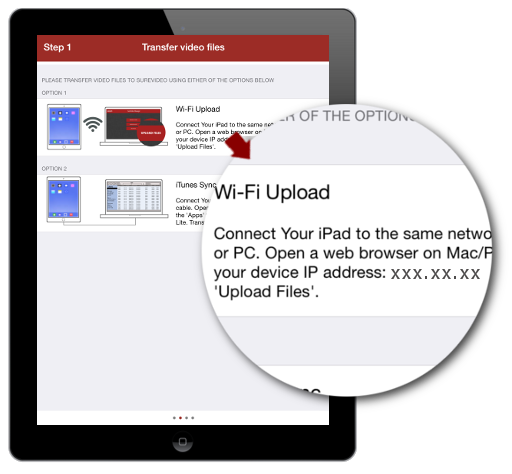
- SureVideo Welcome Screen - Step 1 - Transfer Video Files
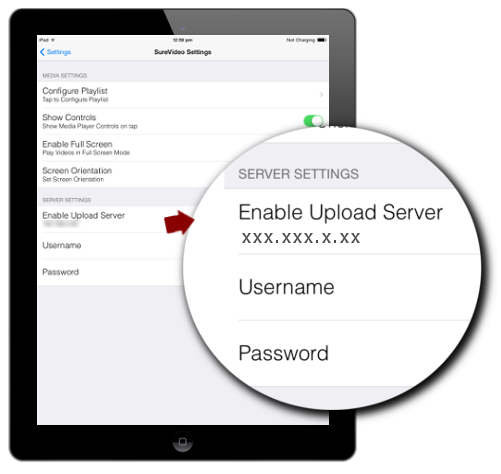
- SureVideo Settings - Server Settings - Enable Upload Server
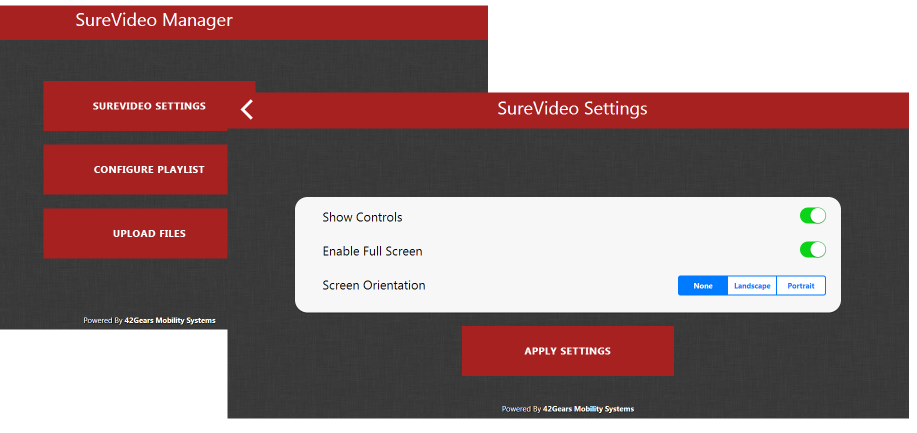
Use this option to configure following SureVideo Settings remotely:
1. Show Controls - Shows Media Player Controls on tap 2. Enable Full Screen - Plays videos in Full Screen Mode 3. Screen Orientation - Set Screen Orientation as None/Landscape/Portrait Configure Playlist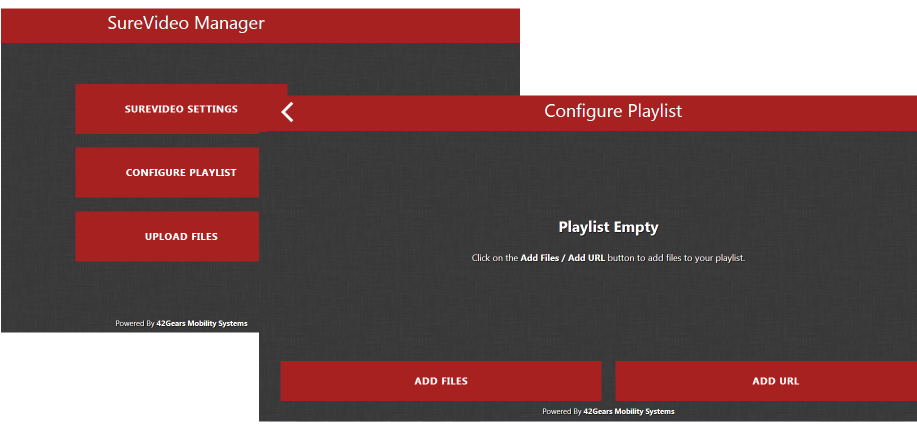
Use this option to configure SureVideo Playlist remotely. You can add videos files or specify a URL to stream the video from.
Upload Files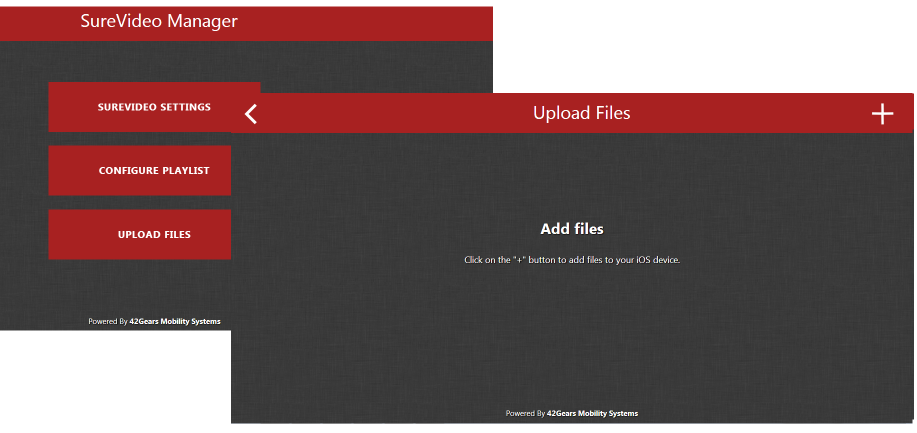
Use this option to upload video files. Uploaded files will be saved in SureVideo Document Directory and can be used to configure playlist in SureVideo.
To read more about SureVideo, click hereFor any other queries, send an email to info@42gears.com
Read more about our products: