| Applies to: | |
| Product | SureFox |
| Platform | iOS |
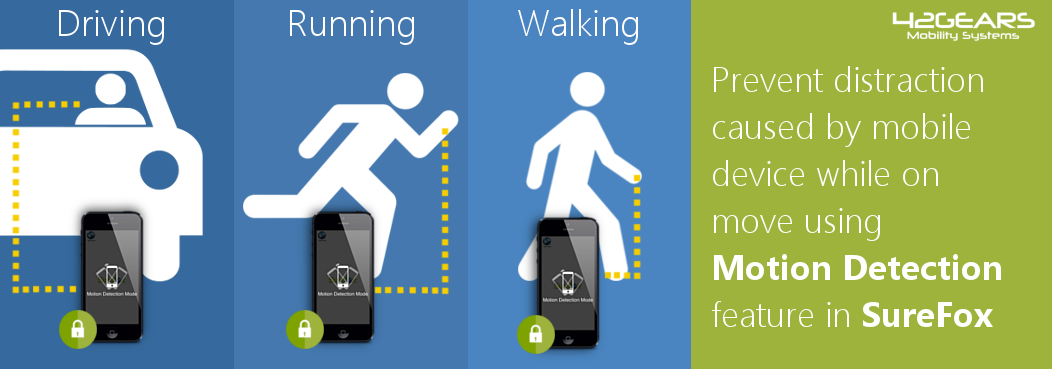 We all understand the danger and consequences of using phones and tablets while driving or even walking on a busy street. However, despite that, it is difficult to set guidelines and policies to restrict anyone from using phones at certain times. Especially, for businesses managing fleets consisting of hundreds of mobile workforce and drivers, it is a difficult task to enforce policies and monitor the usage of devices while on the move.
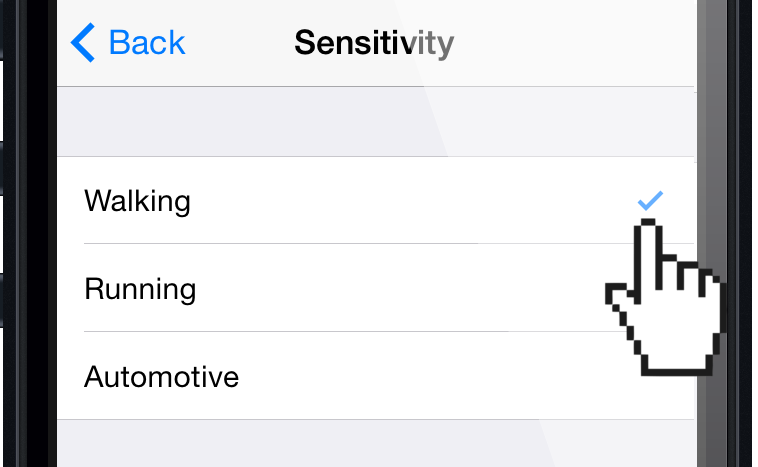
Sensitivity profiles; Walking, Running and Automotive. If the Sensitivity profile is selected as Running
Note: SureFox uses GPS configuration for this feature to work hence, this feature can be used only on GSM iOS devices.
SureFox Settings password prompt by tapping on the screen 5 times within 3 seconds
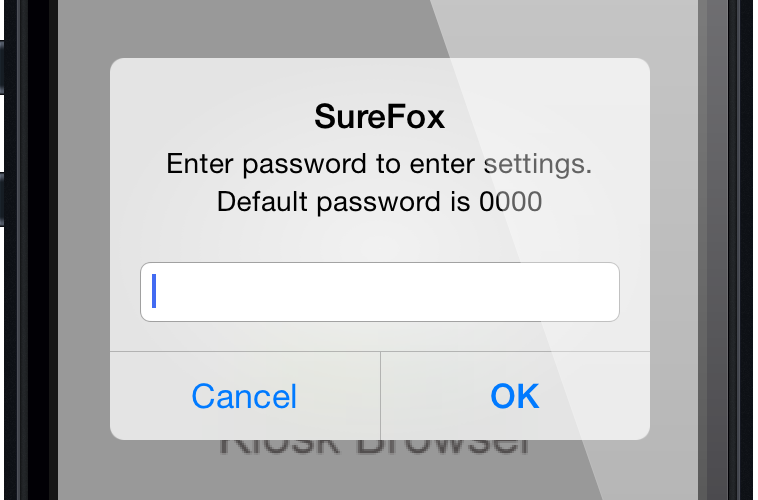
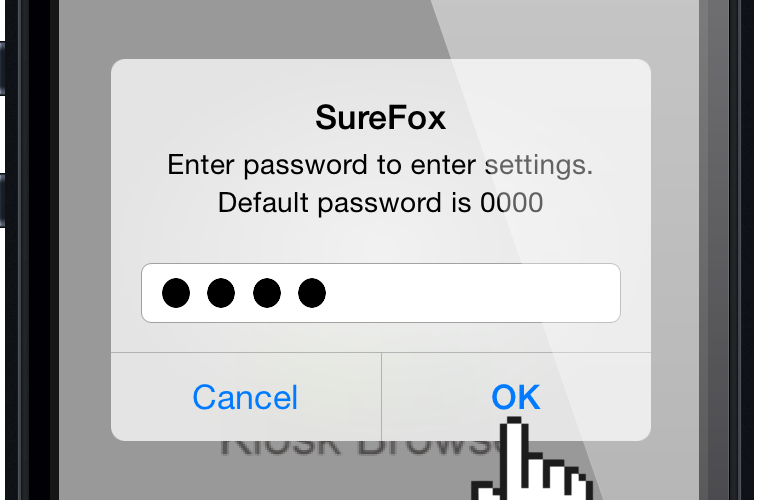
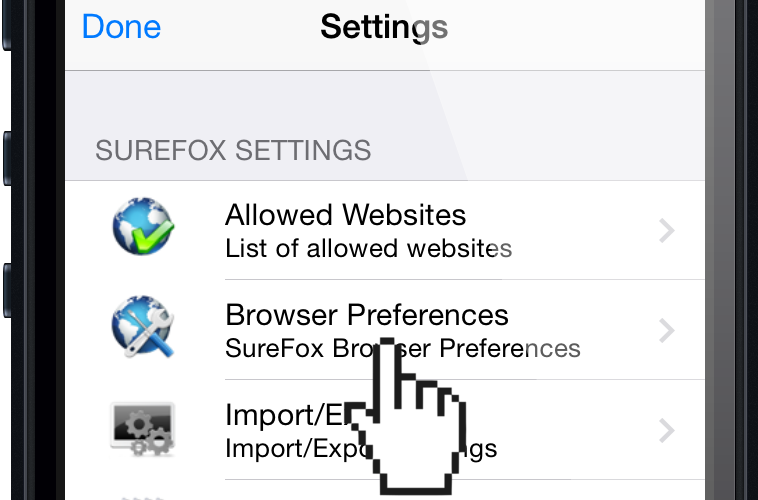
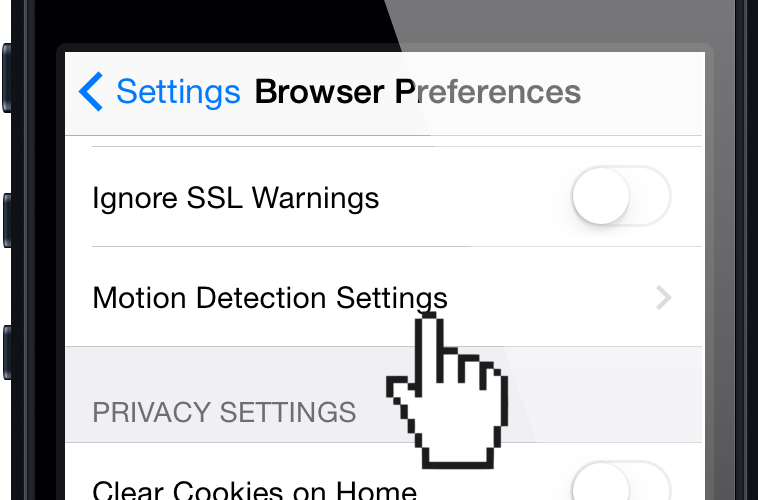
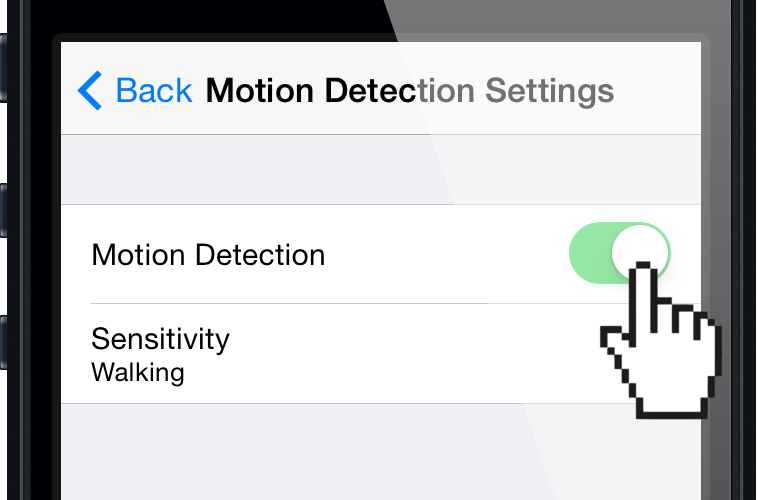
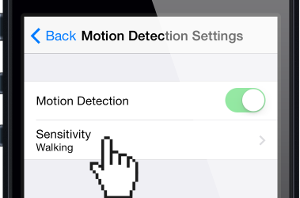
6. Tap and select the Sensitivity profile from the following options:
- WalkingRunning
Automotive
Back
SureFox is running on the device and if the user performs any of the activities specified in the Sensitivity profile in Motion Detection Settings, the device screen will automatically get locked restricting any activities on the device. The screen will come back to normal once the user stops or lowers the pace than the set Sensitivity
SureFox for iOS, download a trial here
SureFox for iOS, here
contact us, click here