| Applies to: | |
| Product | SureVideo |
| Platform | Android |

There are times when you want to set up a product demo kiosk in a mall or an interactive kiosk for your visitors at a Trade Fair. It becomes very important to deliver your statement in an interesting and engaging way. And what can work better than a kiosk which plays your videos?
For an ideal kiosk which plays videos, you need:
Locked device to play videos of your choice
Compact and Manageable Kiosk Device
Easy Installation and Configuration
User Friendly
Low Maintenance
Android Device and SureVideo = Locked Android tablets which play only allowed videos
SureVideo allows you to lock your Android device to plays videos of your choice and nothing else.
Install SureVideo in your Android device, access its settings, select videos you want to play in the lockdown mode and your device is all ready to be set up as video playing kiosk.
SureVideo also ensures that your kiosk is customer friendly and interactive with its features like the new feature – Album View.
Album View Feature
With Album View, you can view allowed media files (images/videos/flash) as thumbnails on a single screen. This makes it easier for users to:
view all the contents on a single screen
select and play images, videos and flash content of choice
customize thumbnail sizes for easy viewing
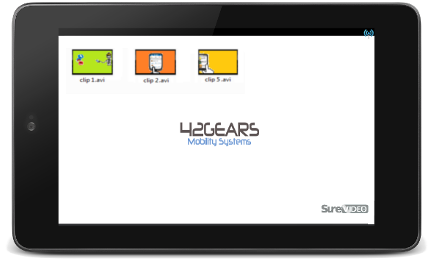
To enable Album View in SureVideo, follow steps mentioned below:
1. Access SureVideo Main Menu
2. Under SureVideo Admin Settings, tap on SureVideo Settings
3. On SureVideo Settings screen, under Display Settings, tap on Album Settings
4. On Album Settings screen, tap and select Enable Album View option
Once you exit SureVideo Main Menu, you will see all the allowed media files as thumbnails. Click on the thumbnail to play the video and once the video is played, SureVideo will automatically come back to Album View.