How to enable Offline Browsing using SureFox Kiosk Browser?

By 42Gears Team

Offline Browsing is downloading and copying web pages onto a computer or a device in order to view them locally without being connected to the Internet. It is very useful when the computer is offline and connection to the Internet is impossible or undesirable.

With SureFox, now you can enable offline browsing of listed allowed websites in your device. Follow the below mentioned procedure to enable offline browsing.

1. Login to SureFox Settings

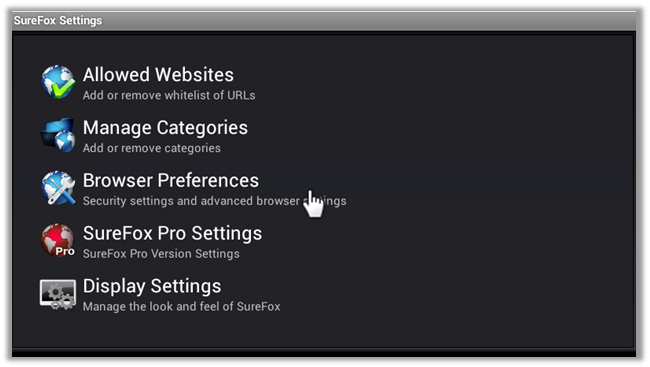
2. On SureFox Settings screen, tap on Browser Preferences
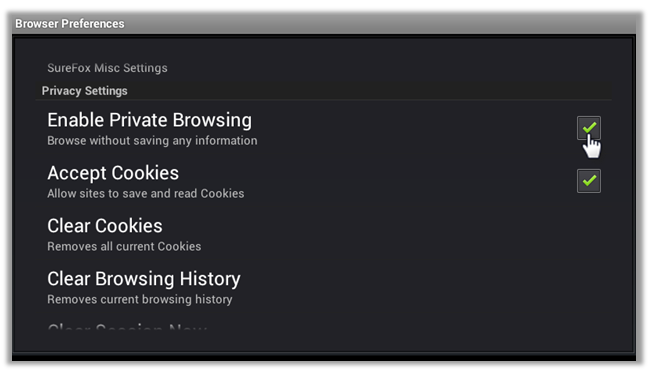
3. On Browser Preferences screen, deselect Enable Private Browsing

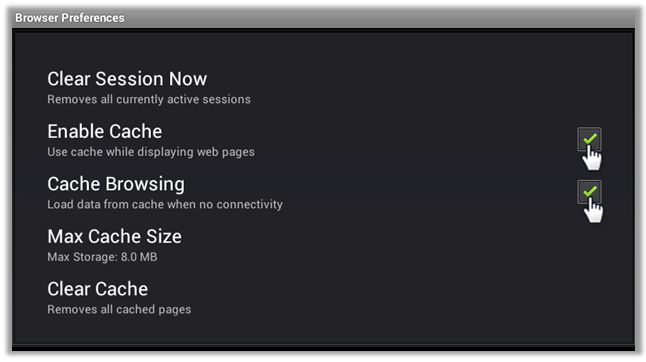
4. Tap and select Enable Cache and Cache Browsing

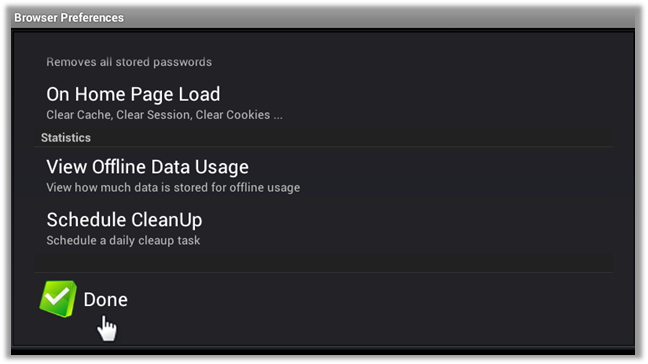
5. Tap Done to save the changes in the settings

To know more about SureFox, visit http://live-42gears-site.pantheonsite.io/surefox/.

“Written with expertise and passion to help you understand the topic better.”

4
42Gears Team – Content Author
Published on May 9, 2013

Subscribe to our newsletter

Stay updated with the latest news, articles, and resources on enterprise mobility.

Weekly articles
Actionable insights delivered once a week. No noise.
No spam
Your privacy matters. Unsubscribe anytime.