| Applies to: | |
| Product | SureLock |
| Platform | Samsung Android |
Samsung's TouchWiz software for tablets such as Galaxy Tab 2 or Galaxy includes a Mini Apps Tray which docks at the bottom of the screen. The tray provides access to applications such as Calculator, Messaging, Music Player using a small arrow present in the center of Bottom Bar. Access to Mini Apps Tray might not be desirable when trying to achieve complete lockdown of devices for enterprise or business purposes. Samsung does not provide an option to hide or disable the Mini Apps Tray however it can be achieved using SureLock.
Disable Mini Apps with Samsung KNOX and SAFE compliant SureLock (No Rooting Required)
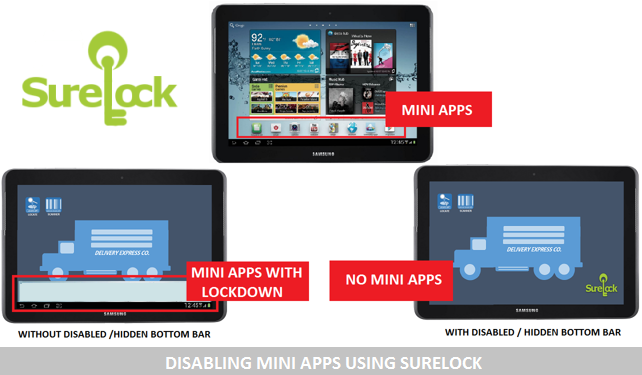
Follow the steps below to disable Mini Apps:
1. Install and launch SureLock on your device (Get a copy here)
2. Login into SureLock's Admin Settings
3. Tap on SureLock Settings
4. Tap and check either the Disable Bottom Bar or Hide Bottom Bar option
6. Tap on Done to complete
Note – Disable Bottom Bar removes App icons from Mini Apps Tray and Hide Bottom Bar will hide Mini Apps Tray.
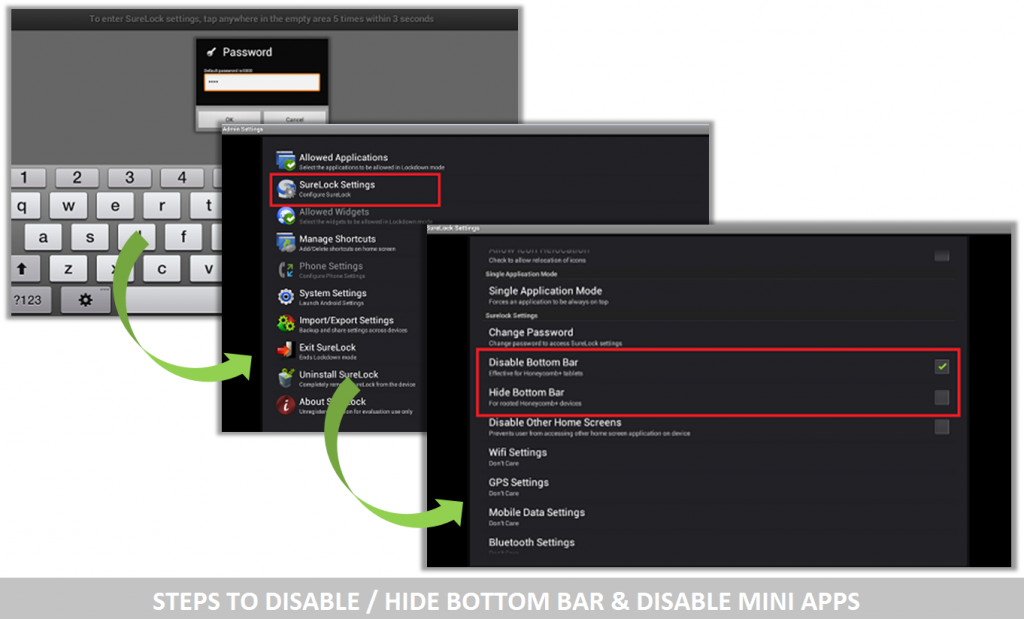
Once you return back to SureLock Home Screen, your Mini Apps Tray will either be disabled or hidden according to the saved settings.
To know more about other features of SureLock, click here

Read more about our products: