
Screen Pinning or App Pinning feature was introduced by Google for Android devices (Lollipop and above) to lock them down into single application mode. The feature allows the user to lock the device screen and show only a specific app, automatically restricting access to all other functions of the Android device.
Once an app is pinned, the device user will not be able to access other apps, navigate to phone settings, or receive notifications. Only the whitelisted (pinned) app can be accessed. If the device owner no longer wants the device to be in screen pinning mode, they can exit a pinned app by holding the back and overview buttons on the device simultaneously. After a couple of seconds, the device will switch back to the overview screen. If the device owner sets a PIN, pattern or password before unpinning, it will have to be entered before the app is unpinned.
Evolution of Lockdown: From Android 11 to Android 16
As Android has matured, so have the methods for locking down devices. While Screen Pinning remains a useful consumer feature, Google has shifted its enterprise focus toward Android Enterprise. In modern versions like Android 11, 12, and the upcoming Android 16, enterprise lockdown is primarily handled through Dedicated Device mode (formerly COSU).
Modern Android versions provide APIs that allow for a much more robust lockdown experience. Instead of a simple "pin," these devices can be configured to run in a fully immersive kiosk mode where the system UI is completely restricted, preventing users from accidentally (or intentionally) bypassing the lockdown via system gestures or notifications.
Use cases for Screen/App pinning
Let’s take a look at some of the use cases for screen/app pinning feature:
For personal use devices - App pinning is an ideal feature for parents who wish to restrict their children's access to only one application or game on their phone. It can help ensure that children don’t open unwanted apps or accidentally delete important files on their parent’s phones.
For business use devices - Android devices are also popular as single-purpose devices. They are increasingly being used as Point-of-Sale (POS) terminals, electronic menus for restaurants, tablets at retail stores, and museum guides. Using app pinning mode, business owners can pin POS apps, digital menus, or guide apps on screen to convert mobile devices into customer-facing interactive hardware.
Pros and Cons of Screen/App pinning
Let’s take a look at the pros and cons of basic Android Screen Pinning:
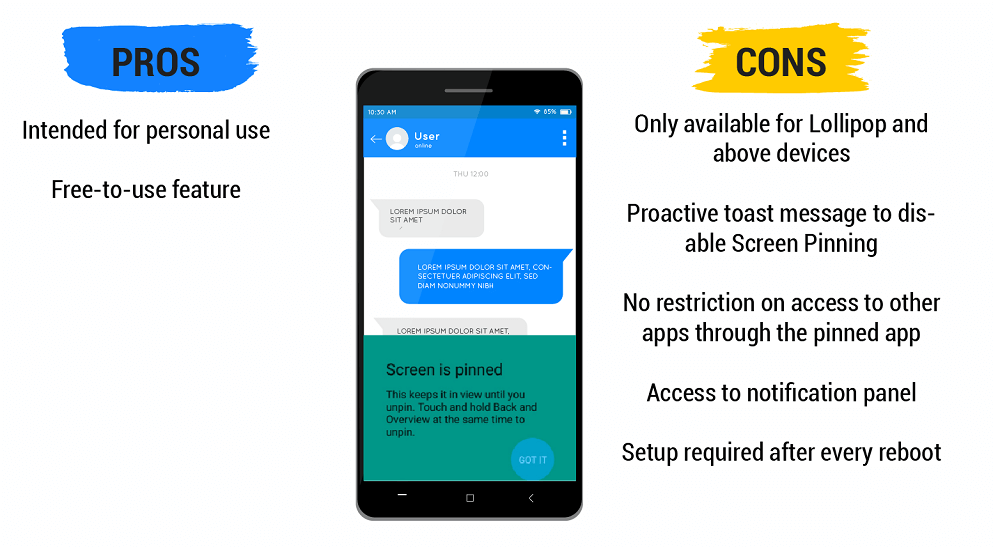
Pros:
- Ideal for personal use, especially for restricting children from using unwanted apps.
- Built-in, free-to-use feature.
- Simple to set up for temporary lockdown scenarios.
Cons:
- Only available for Lollipop and above devices.
- Proactive toast messages can inform users how to disable screen pinning.
- No restriction on access to other applications that might open from within a pinned app (e.g., via a link).
- Potential access to the Notification Panel depending on the specific Android version and configuration.
- Manual setup required by an authorized admin after every device reboot.
Alternatives for Screen/App Pinning: Enterprise Kiosk Mode
Enterprises that wish to ensure that users cannot exit the single application mode must opt for a stronger, managed alternative.
1. SureLock Kiosk Mode
SureLock, an enterprise mobile lockdown solution, offers a quick and easy way to lock down off-the-shelf mobile devices into Single Application Mode. It can turn tablets, smartphones, smartwatches, and even desktop computers into dedicated-purpose devices by allowing access to only a single whitelisted application.
By default, SureLock won’t allow any non-whitelisted applications to launch on the device, even from within a whitelisted app. It also offers a Suppress Notification Panel feature to ensure users do not get access to any other app notification or system settings.
2. Shared Device Mode for Retail and Logistics
In environments like retail warehouses or logistics hubs, devices are often shared among multiple shift workers. Modern lockdown solutions support Shared Device Mode, which allows workers to sign in at the start of their shift, access only the apps they need (like inventory management or delivery trackers), and sign out at the end of their shift, clearing any sensitive data. This is far more secure and efficient than simple screen pinning.
3. Healthcare and Patient Care
In healthcare, Android tablets are frequently used for patient check-ins or as bedside entertainment units. In these cases, security is paramount. A dedicated kiosk mode ensures that patient data remains protected while providing a simplified interface for the user. SureLock can restrict access to everything except the specific medical or entertainment app, ensuring HIPAA compliance and data privacy.
4. Android Enterprise Dedicated Device Mode
Businesses can also take advantage of secured screen pinning functionality by enrolling devices under Dedicated Device mode using the SureMDM solution. For example, if a business requires a single application to run on their company-owned devices, they can create and apply a respective profile to their devices using SureMDM. This will ensure that the end users will not have the option to exit the kiosk mode, and the lockdown persists even after reboots.