
Get Started with SureFox for iOS
Supports
- iOS 11.x
- iOS 10.x
- iOS 9.x
- iOS 8.x
- iOS 7.x
Install SureFox
Login to SureFox Settings
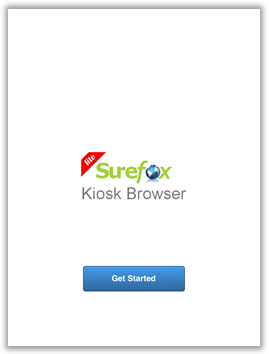
1. Tap on SureFox icon
2. On SureFox Home Screen, tap anywhere on the screen 5 times with 3 seconds to launch SureFox Settings Password Prompt
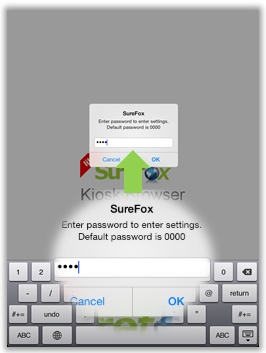
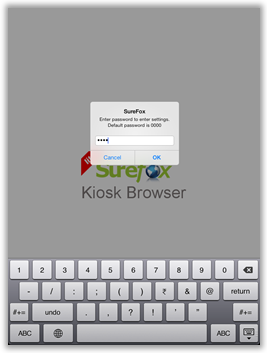
3. Enter Default Password - 0000 and tap OK
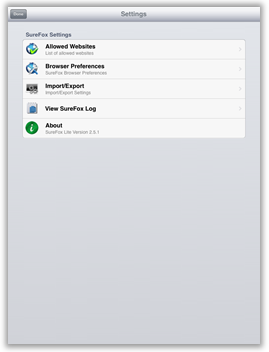
4. On successful login, you will be on SureFox Settings screen
Allowing a website
1. Access SureFox Settings
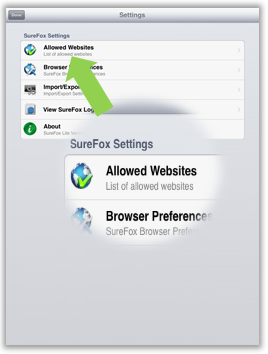
2. Tap on Allowed Websites on Settings screen
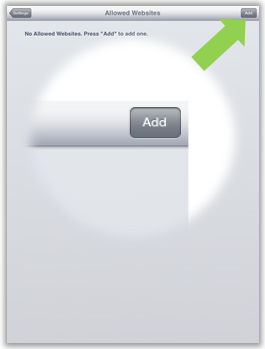
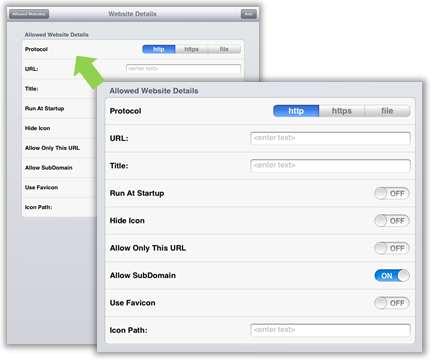
4. On Website Details screen, enter following Allowed Websites Details:
-
-
- Protocol - Specify if the URL is http, https or file
- URL - Enter URL of the website
- Title - Give name for the URL
- Run at Startup - Switch it ON to run allowed website as soon as the device is switched on
- Hide Icon - Switch it ON to hide the icon of the allowed website on SureFox Home Screen
- Allow Only This URL - Switch it ON to allow only the added website
- Allow Subdomain - Switch it ON to allow browsing of allowed website subdomains
- Use Favicon - Switch it ON to use allowed website's favicon
- Icon Path - Specify the path of the image to be used as icon image
-
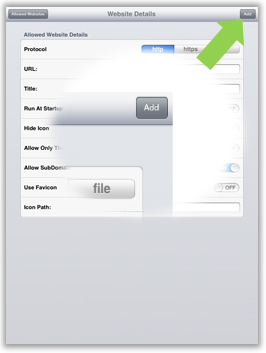
5. Tap on Add to complete
Guided Access
For SureFox to create complete device lockdown, Guided Access has to be enabled. Guided Access locks down the device to a single application mode and disables external control buttons including Home Button.
To enable Guided Access, go to General -> Accessibility -> Guided Access -> On
To know more about Guided Access visit Apple iOS Support Page.