How to upload files using Upload Server in SureFox for iOS?

By 42Gears Team
Applies to:
Product SureFox
Platform iOS

SureFox has an inbuilt server which can be used for uploading files from your computer to Surefox Documents Directory using web browsers like Chrome. This means no constant syncing of device with iTunes to upload files.

Follow below mentioned steps to upload files using SureFox Upload Server:

1. Tap SureFox Homescreen 5 times within 3 seconds to launch the password prompt

2. Enter your password and tap on OK

3. Once on SureFox Settings screen, tap on Browser Preferences

4. On Browser Preference Screen, turn on Enable Upload Server option

5. In Run on Port field, enter the configured port on which upload server will work

6. Once done, tap on Settings on top left to go back and complete

7. Copy the Network Address of the upload server (visible below the Enable Upload Server option)

8. Paste it in the address bar of a browser and hit Enter to access the upload server
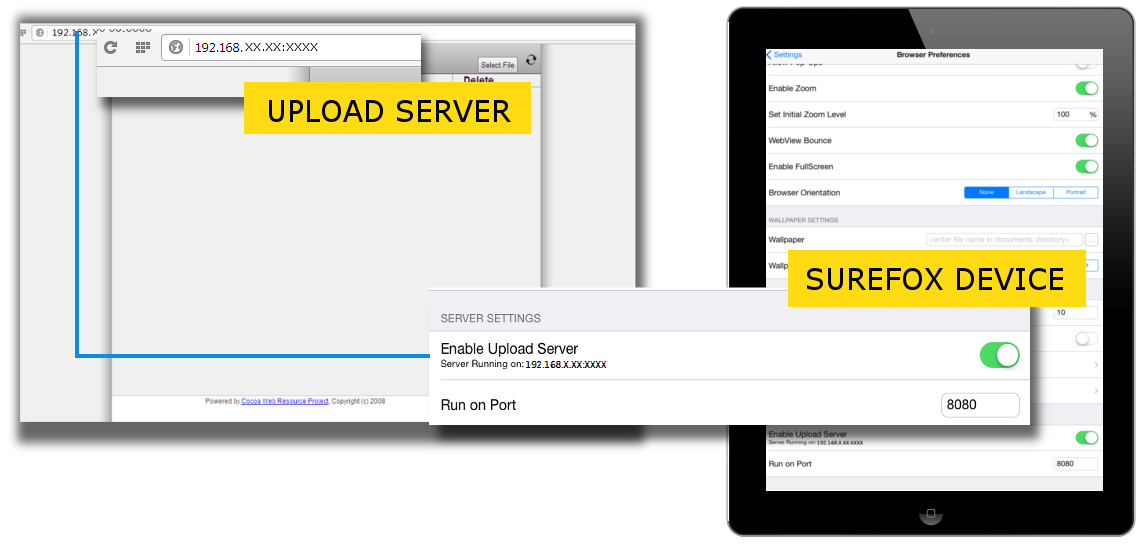
SureFox Upload Server

9. You can now use the upload server to browse and upload the files directly to Surefox Documents Directory

For more details about SureFox for iOS, click here

To learn how to transform your iPad into a video playing kiosk, click here

For more details, you can email us – info@42gears.com

“Written with expertise and passion to help you understand the topic better.”

4
42Gears Team – Content Author
Published on July 24, 2014

Subscribe to our newsletter

Stay updated with the latest news, articles, and resources on enterprise mobility.

Weekly articles
Actionable insights delivered once a week. No noise.
No spam
Your privacy matters. Unsubscribe anytime.