| Applies to: | |
| Product | SureMDM |
| Platform | Android |
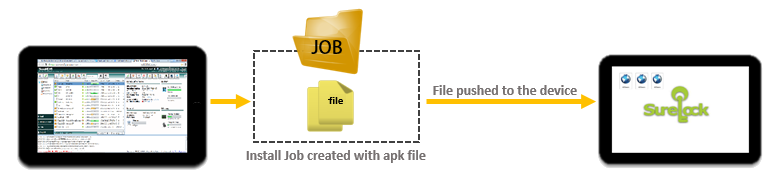
SureMDM efficiently handles remote installation of files on large number of devices. All you have to do is create an installation job with file details and deploy the job to multiple Android devices.

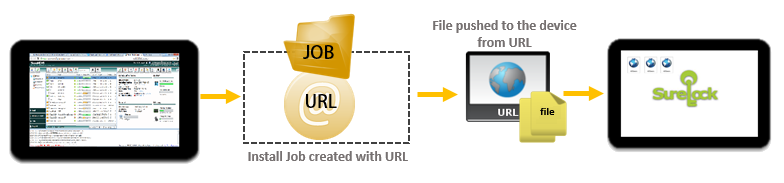
Earlier, to create an Install Job, the file to be installed was required to be uploaded to SureMDM. However, now you can install a file by specifying a download URL of the file. In other words, with this new option, you can perform an install job of a large sized file without uploading it to SureMDM .

To create an Install Job using SureMDM, follow below mentioned steps:
1. Login to SureMDM Web Console

2. Click on Jobs on the top bar
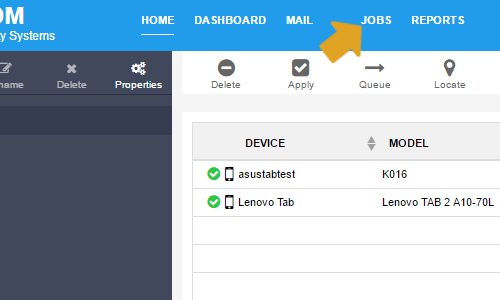
3. On the Jobs screen, click on New Job
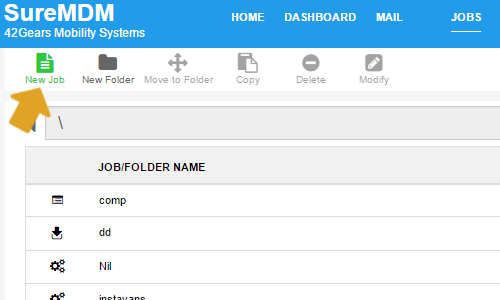
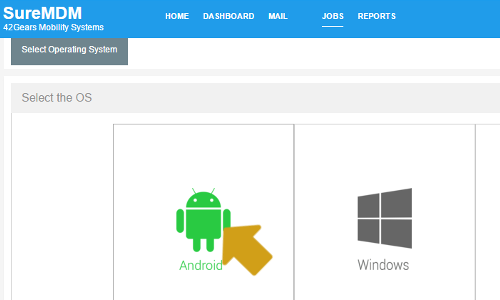
4. Choose the platform as Android
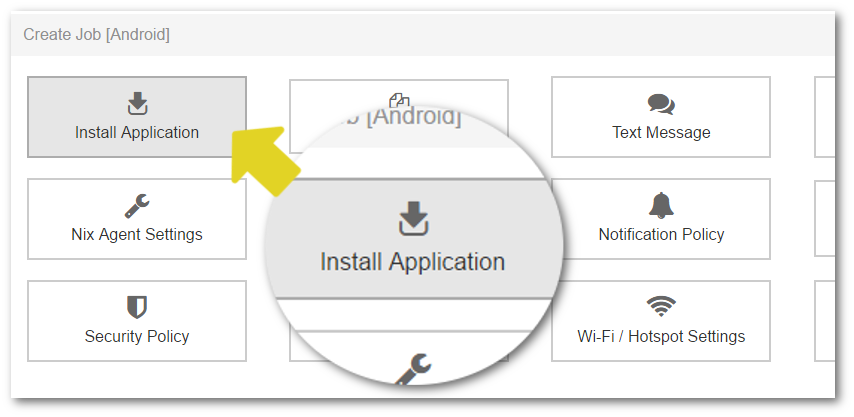
5. Next, select Install Application
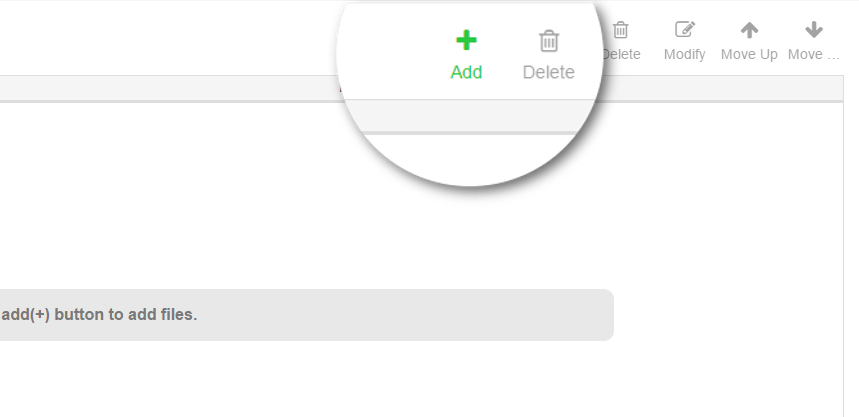
6. On Configure Job screen, type in a Job Name and click on Add
7. On Install Job prompt, type in the URL in File Path field
8. Enter the location for the filed to be saved in Device Path field
9. Check the Install After Copy option
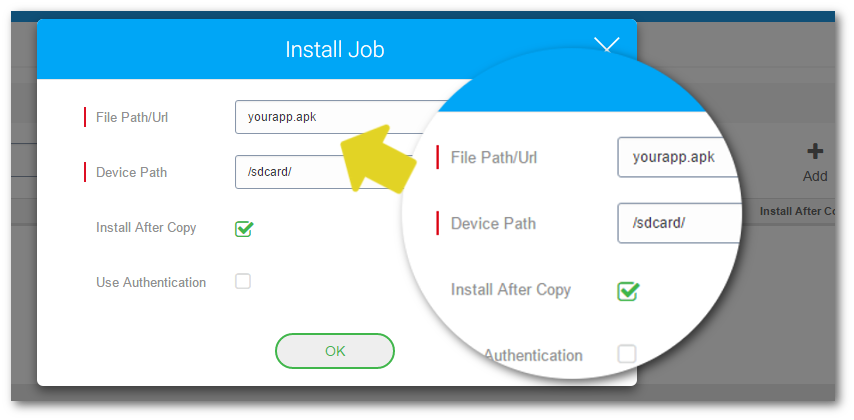
10. Tap on OK to complete
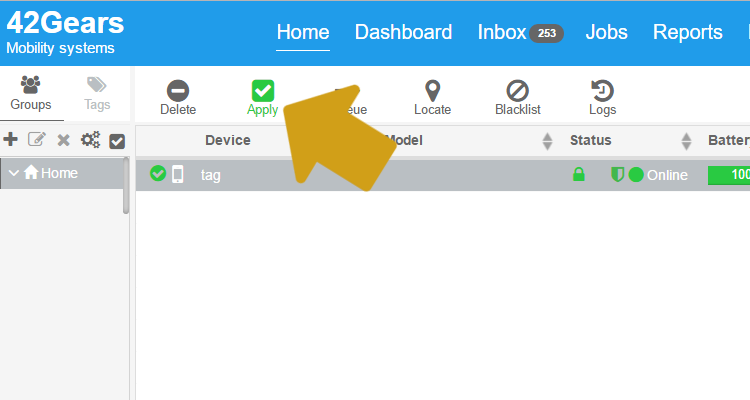
11. Return to Device List and select the device to apply the job
12. In Device Toolbar, click on Apply
13. Select the job you want to apply and click on OK
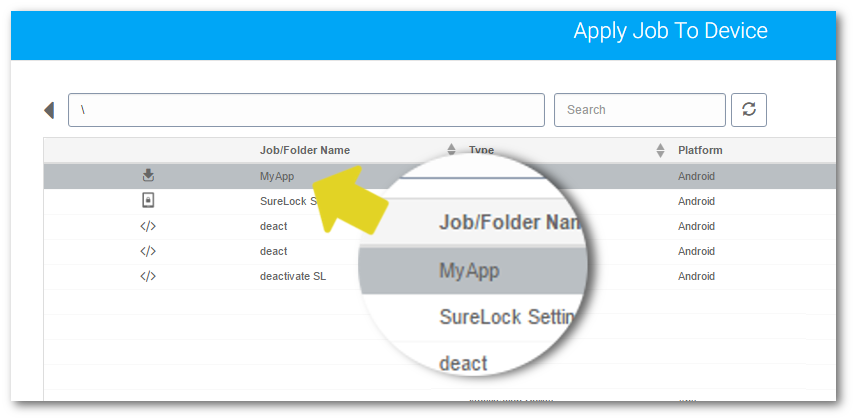
Once these steps completed, the file will be remotely installed in the device from the specified URL.
To read more about SureMDM, click here
To register for 30 days free trial, click here
For any other queries, send an email to info@42gears.com