If you want to setup Single Application Mode on Android devices, please look at this post.
SureMDM locks down your iPhone and iPads to run just one application in the foreground all the time. Home Button, Notifications, and Control Center are disabled too.
Here are the steps you can follow to lock your iPads and iPhones into Single Application Mode:
Note: Please make sure that you have Supervised Mode enabled on your device. Click here for the steps.
1. Download and install SureMDM Nix Agent for iOS from App Store
2. Once installed, launch SureMDM Nix Agent
3. On SureMDM Nix Welcome Screen, tap Enroll Device
4. On Enroll Device screen, select from the following two options:
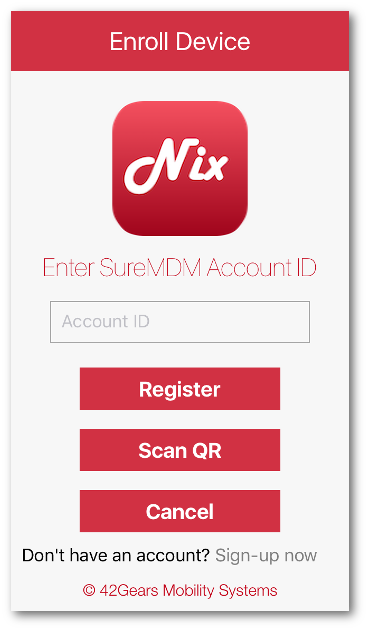
Scan QR
Install Profile screen, tap Install
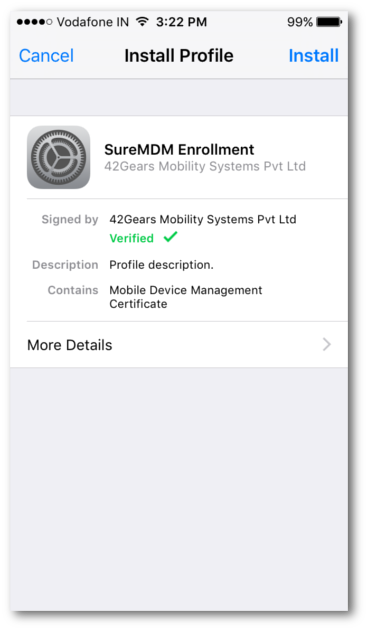
Done
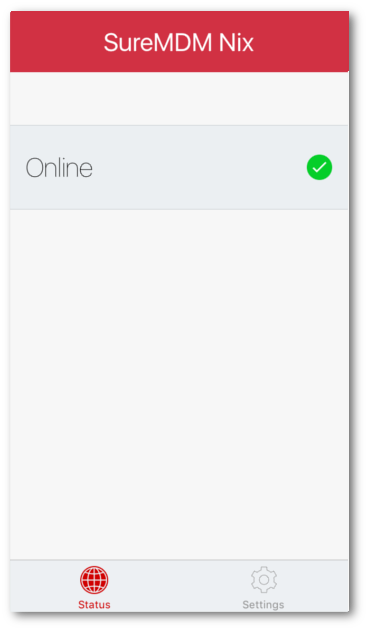
SureMDM Nix Home Screen should mention Online
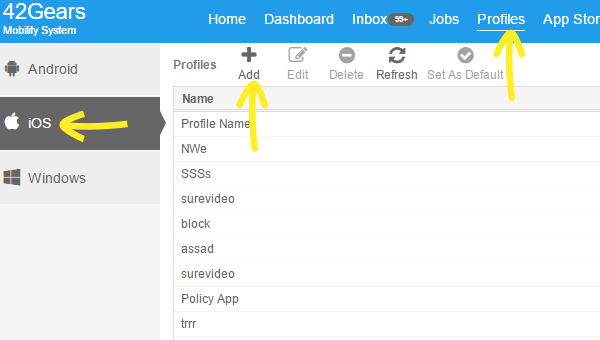
SureMDM Web Console, click Profiles
iOS tab and click Add
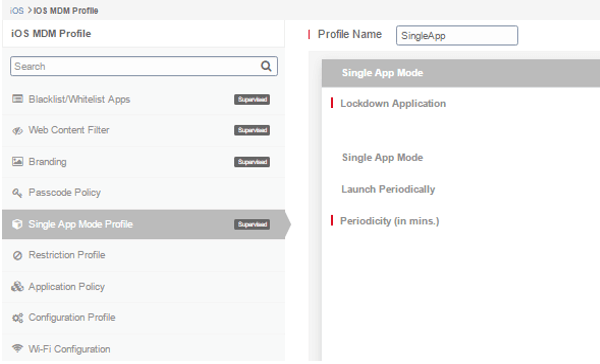
iOS MDM Profile page, give a name to the job and select Single App Mode Profile
Configure, enter following details and click Save
Lockdown Application
Single App Mode
iOS MDM Profile, go to SureMDM Home and select the device listed under Device List
Apply
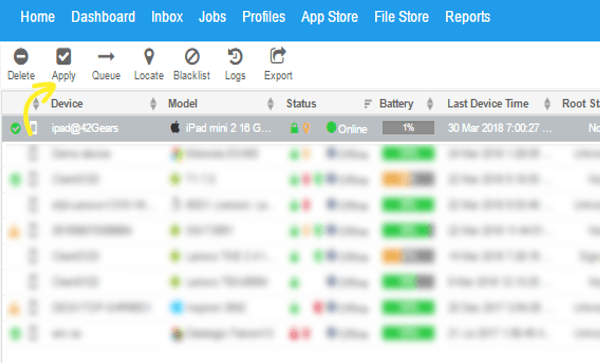
Apply Job to Device prompt, select the created job and click Apply