
SureLock, SureFox, SureMDM Nix Agent or a combination of these products on Panasonic Android device, following advanced features are enabled without device rooting.
SureLock and SureFox
Schedule Reboot
Disable Applications
Enable/Disable GPS
Enable/Disable Mobile Data
Enable/Disable Airplane
Kill Unallowed Applications
If an unallowed application is launched through an allowed application, the unallowed application is suppressed by SureLock, however, it is launched and remains open in the background. Enabling Kill unallowed applications option kills any such unallowed application launched in the background.
SureMDM
Silent Installation/Uninstallation
Remote Control
Remotely control the device screen using SureMDM Web Console
Clear App Data
Remote Reboot
SureLock, SureFox, and SureMDM Nix Agent installed, there is no need to install them again. Just directly download Enterprise Agent for Panasonic from Google Play store
Note: This Enterprise Agent just needs to be installed and present on the device to work. There is no need for it to be launched.
SureLock
1. Launch SureLock
2. Access SureLock Admin Settings and tap on About SureLock
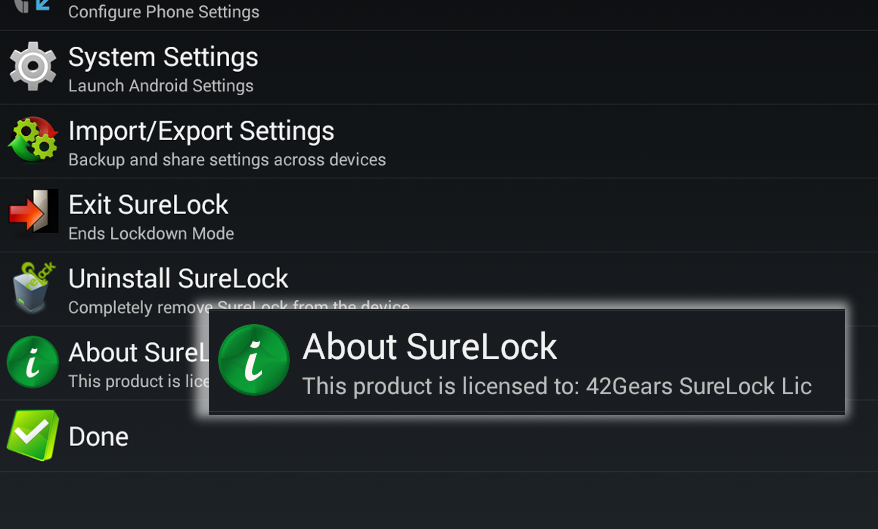
3. Check under EnterpriseAgent option, it should mention Connection Remote
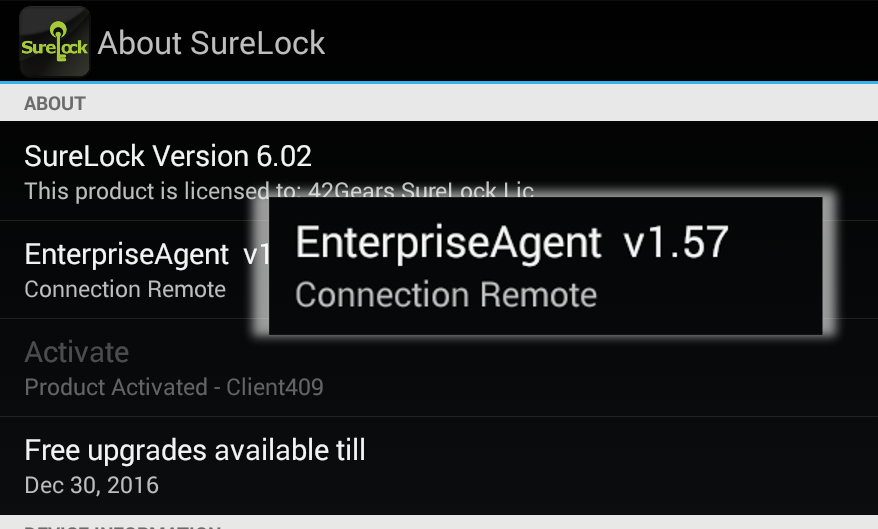
4. If it shows Local, the Enterprise Agent that you have downloaded is not the right one for the device. Contact our tech support team at techsupport@42gears.com
SureMDM Nix Agent
1. Launch SureMDM Nix Agent
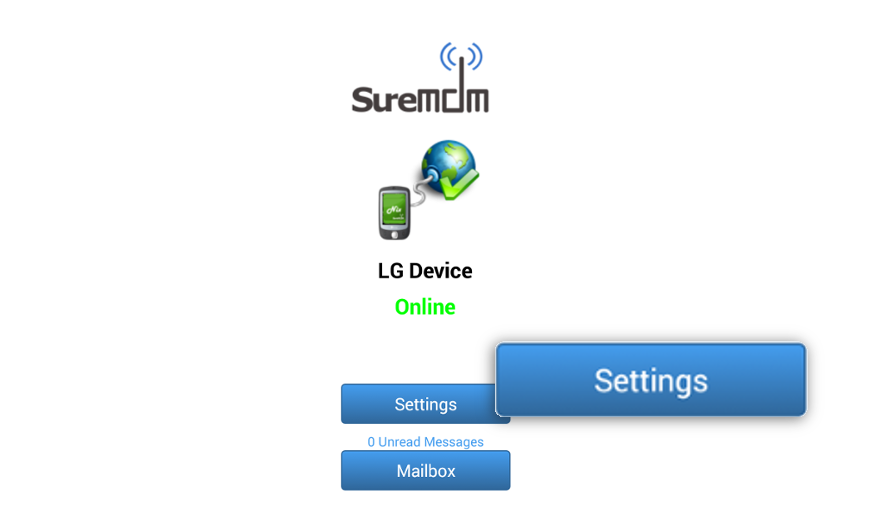
2. On SureMDM Nix Agent Home, tap on Settings
3. On Settings screen, check under EnterpriseAgent option, it should mention Connection Remote
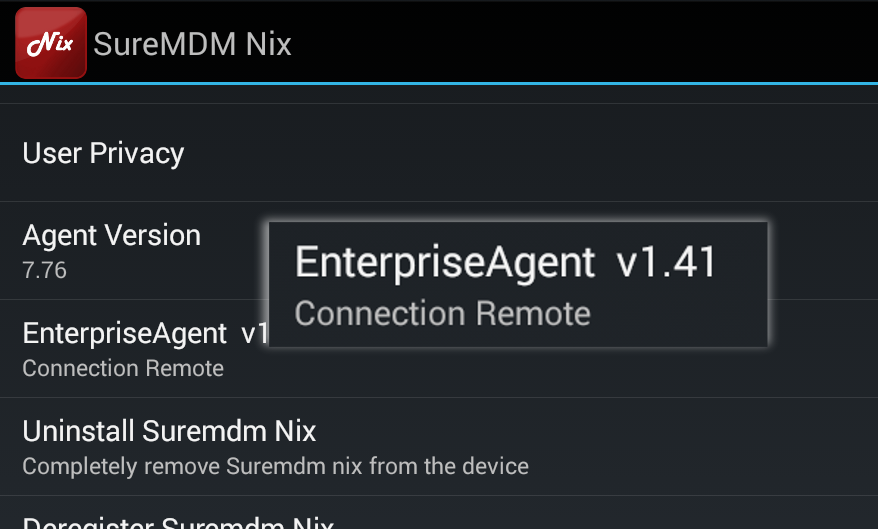
4. If it shows Local, the Enterprise Agent that you have downloaded is not the right one for the device. Contact our tech support team at techsupport@42gears.com
SureFox
1. Launch SureFox
2. Access SureFox Settings and tap on About SureFox
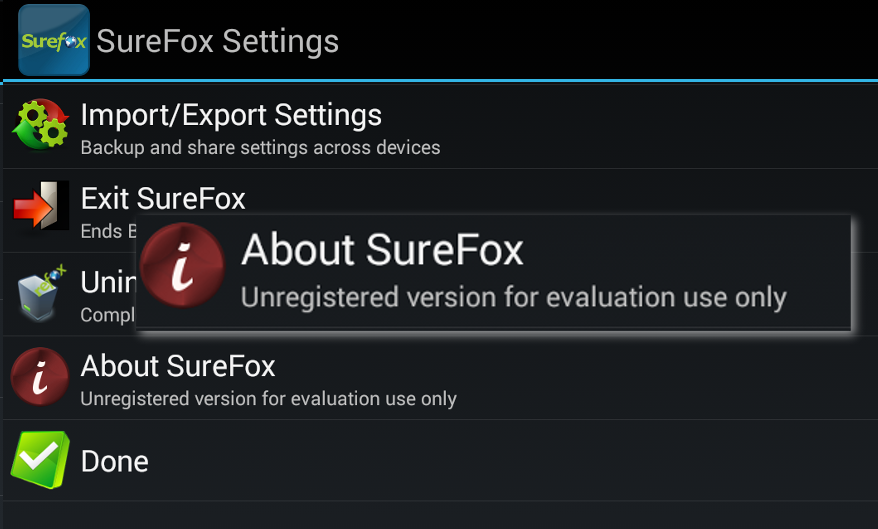
3. Check under EnterpriseAgent option, it should mention Connection Remote
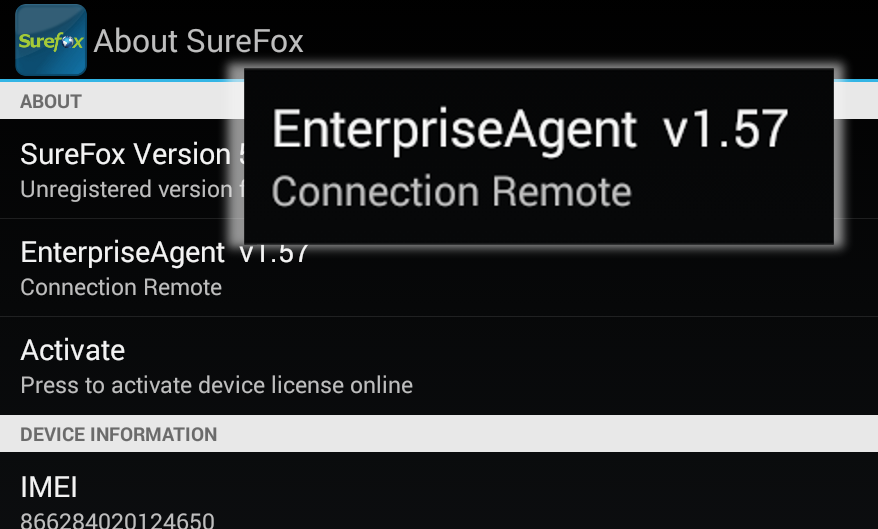
4. If it shows Local, the Enterprise Agent that you have downloaded is not the right one for the device. Contact our tech support team at techsupport@42gears.com