Restrict access to device settings by disabling Top Notification Bar in Android 4.1 Jelly Bean and above devices
Top Notification Bar has been introduced (also known as Top Bar, Action BarorStatus Bar)
Disable Top Notification Bar
Here is how you can disable the Top Notification Bar in Android 4.1 Jelly Bean and above devices using SureLock
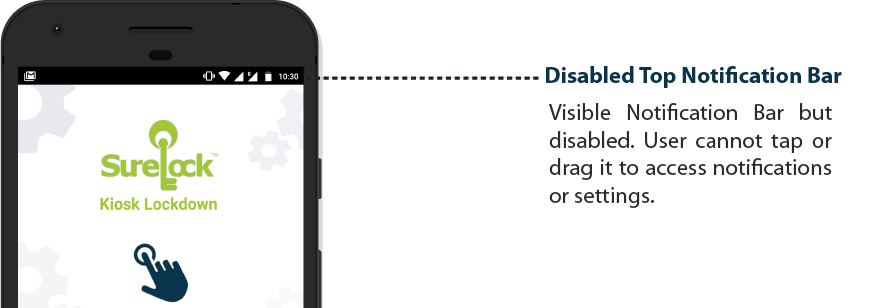
1. Install and launch SureLock.
2. Tap the SureLock Home Screen
3. On the password prompt, enter SureLock default password as 0000
SureLock AdminSettings
4. On Admin Settings screen, tap SureLock Settings.
5. On SureLock Settings screen, tap Disable Status Bar.
6. Tap Done
Top Notification Bar
Hide Top Notification Bar
For Samsung, rooted devices and platform signed devices, it is possible to completely hide the Top Notification Bar
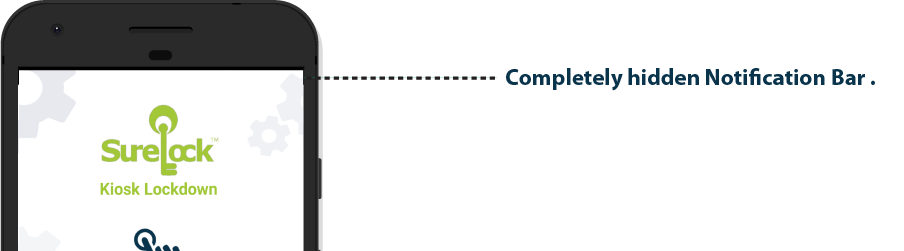
Top Notification
Samsung KNOX is enabled or device is rooted with SuperSU and SureLock is granted root access or correct Enterprise Agent (EA) is installed in the device. (For any help, you can reach out to our Technical Support Team here)
SureLock Home Screen
0000
SureLock AdminSettings
Admin Settings screen, tap SureLock Settings.
SureLock Settings screen, tap Hide Bottom Bar.
Done
SureLock, click here