| Applies to: | |
| Product | SureFox |
| Platform | iOS |
SureFox Upload Server
1. Tap SureFox Homescreen
2. Enter your password and tap on OK
3. Once on SureFox Settings screen, tap on Browser Preferences
4. On Browser Preference Screen, turn on Enable Upload Server
5. In Run on Port
6. Once done, tap on Settings
7. Copy the Network Address of the upload server (visible below the Enable Upload Server
8. Paste it in the address bar of a browser and hit Enter
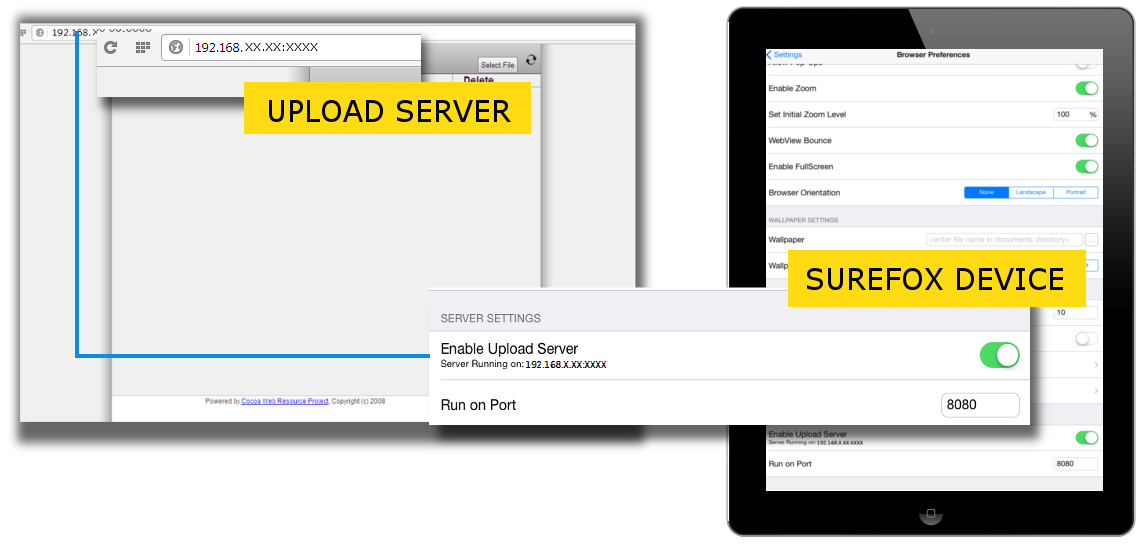
9. You can now use the upload server to browse and upload the files directly to Surefox Documents Directory
SureFox for iOS, click here
iPad into a video playing kiosk, click here
info@42gears.com