There are two ways of doing it:
1. Update SureLock/SureFox Settings using inbuilt SureLock/SureFox option
2. Update SureLock and SureFox Settings using SureMDM Jobs
This option can be used only for the devices which are currently online on SureMDM. You can view the current SureLock/SureFox Settings for the selected device and make changes to it.
Follow the steps below to view and edit the configuration instantly:
1. Login to SureMDM Web Console.
2. Identify and select the online device from the Device List section.
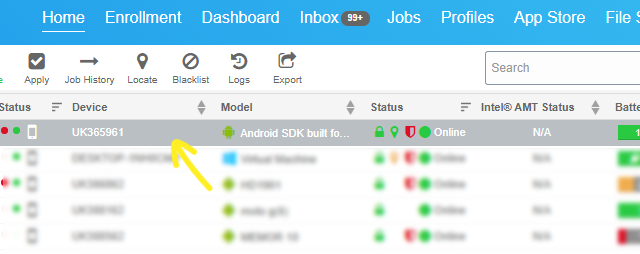
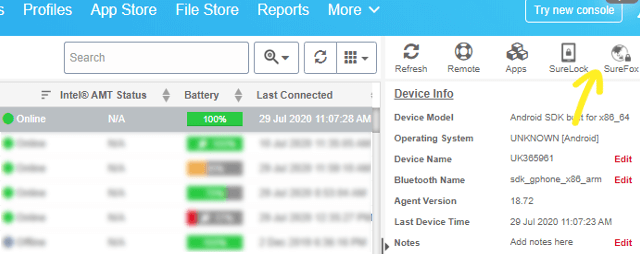
3. Next, click on SureLock/SureFox button from Quick Action Toolbar to launch SureLock/SureFox Settings prompt.
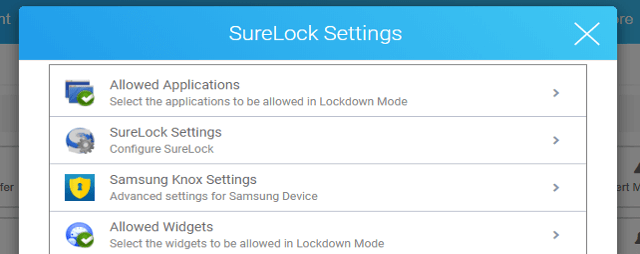
4. On SureLock/SureFox Settings prompt, make the desired changes.
5. Once desired changes are made, you have following options to choose from:
- Save
- Save as File
- Edit XML
- Advanced Option
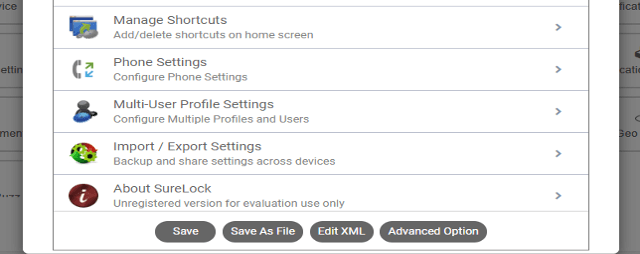
You can also make the changes in SureLock/SureFox Settings using XML format.
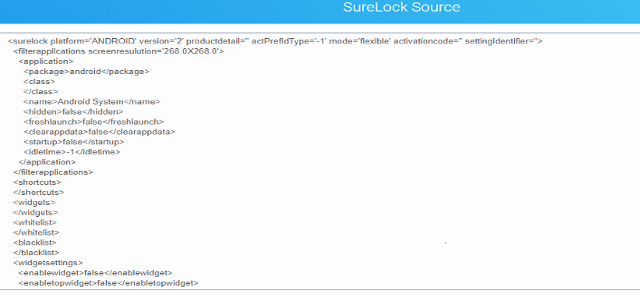
Apart from using above mentioned SureLock/SureFox Settings options from Quick Action Toolbar, you can also create Settings Jobs which can later be applied to any online or offline device and even a group of devices. This method could be very useful if you have to update SureLock/SureFox Settings on multiple devices at once.
To create SureLock/SureFox Settings Job, follow these steps:
1. Login to SureMDM Web Console.
2. On SureMDM Home Screen, click Jobs > New Job > Android.
3. On Select Job Type screen, select SureLock Settings/SureFox Settings.
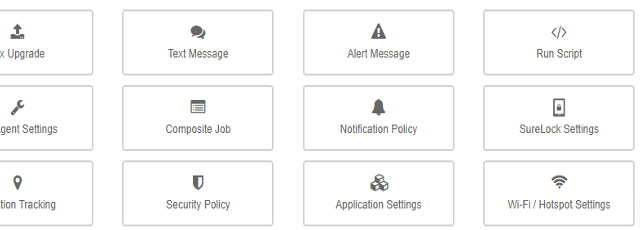
4. Next, on SureLock/SureFox Settings prompt, make the desired changes.
5. Once desired changes are made, you have following options to choose from:
- Save
- Save as File
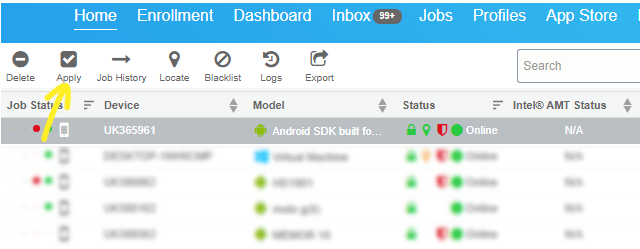
6. Once the job saved, use Apply option on SureMDM Home Screen to apply the job to desired devices or groups.
To know more about mobile device management using SureMDM, click here
To learn more on how to secure and manage Android, iOS and Windows Mobile/CE devices efficiently, visit us at www.42gears.com