| Applies to: | |
| Product | SureMDM |
| Platform | Samsung Android |
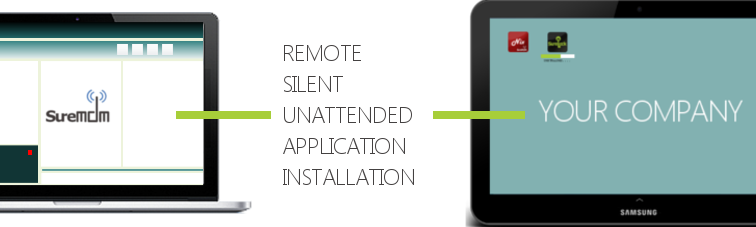
Remote Silent Installation
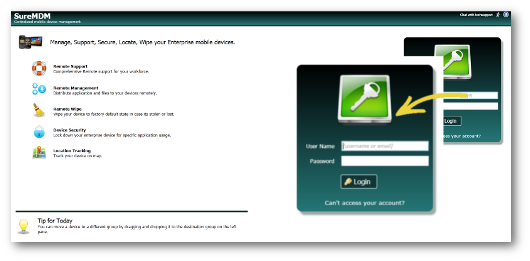
1. Login to SureMDM Web Console
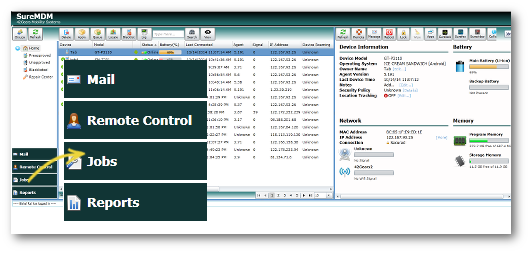
 2. Click on Jobs option from the Utility Panel
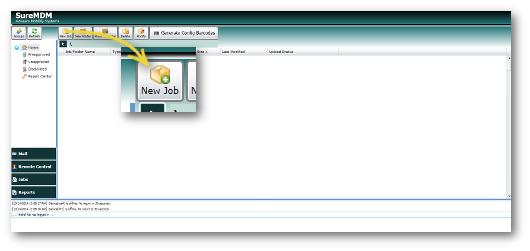
 3. On the Jobs screen, click on New Job
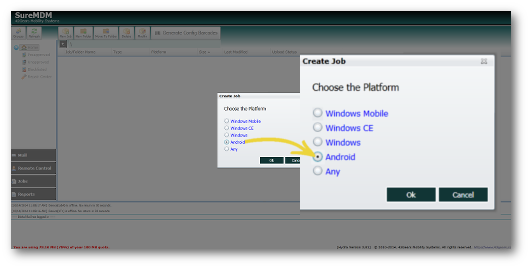
 4. On the Create Job prompt, select Android and click on OK
 5. On the Create Job [Android] prompt, select Install Program
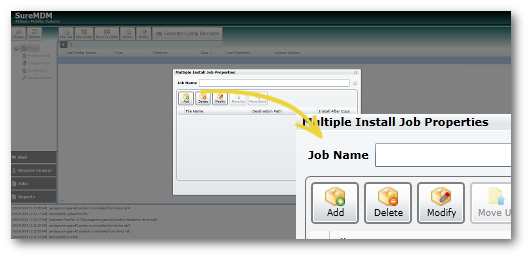
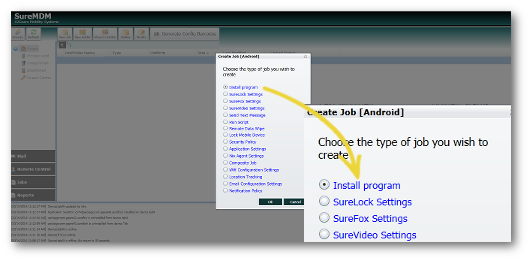 6. On the Multiple Install Job Properties prompt, enter a Job Name and click on Add
 7. On the Install Job Properties
 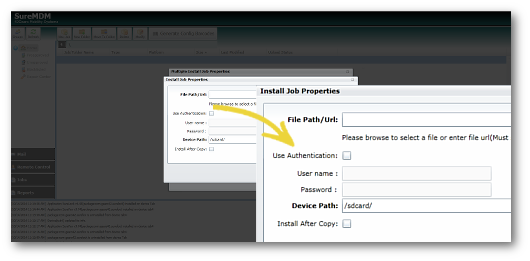 File Path/URL – Browse and select a file or enter a URL of the file to be installed
 Use Authentication – Enter User ID and Password if the URL specified requires login
Device Path – Location on the device where the file is to be installed
Install After Copy – Check this option if you want to install the application after being copied
8. Click on OK
9. Once back on the main screen, identify the device from the Device List
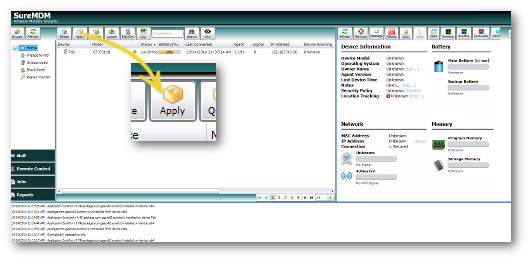
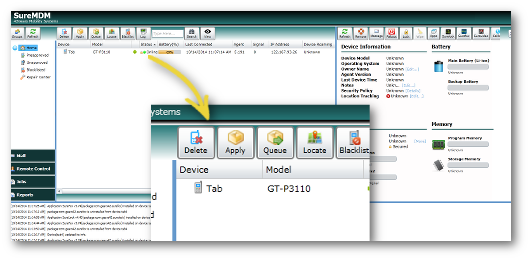 10. Click on Apply to launch a prompt with list of Jobs
 11. On the Select Job(s) to apply prompt, select the Install Program job you created and click on OK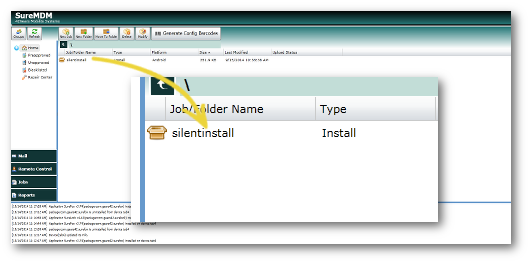
SureMDM Trial for 30 Days, click here
SureMDM Nix Agent, click here
SureMDM, click here

Read more about our products: