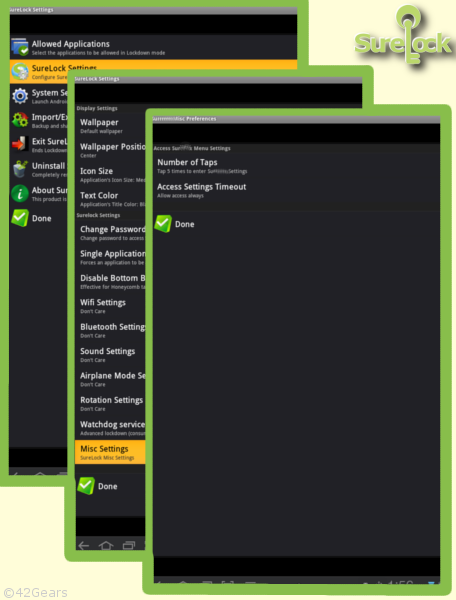
- Access the SureLock admin screen using your password and follow as shown in steps below: [caption id="attachment_959" align="aligncenter" width="365" caption="Steps for SureLock"]
 [/caption]
 - In Misc Settings, you can find the options to modify the settings to access Administrator's Password Prompt.
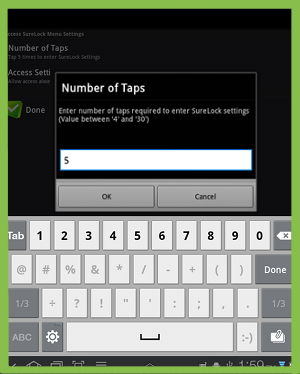
- Number of Taps: Change the Number of Taps required on screen to open the Password Screen for Admin [caption id="attachment_960" align="aligncenter" width="240" caption="Edit "Number of Taps""]
 [/caption]
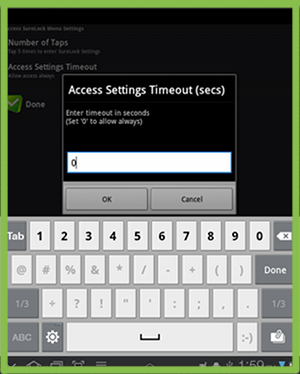
 - Access Settings Timeout: Change "Access Settings Timeout" to control the time(in seconds) after launch of SureLock within which the Admin can try to access Password prompt for Admin Setting [caption id="attachment_961" align="aligncenter" width="240" caption="Edit "Access Settings Timeout""]
 [/caption]
- Number of Taps: Change the Number of Taps required on screen to open the Password Screen for Admin [caption id="attachment_960" align="aligncenter" width="240" caption="Edit "Number of Taps""]
To learn more on how to secure and manage Android and Windows Mobile/CE devices efficiently, visit us at www.42gears.com