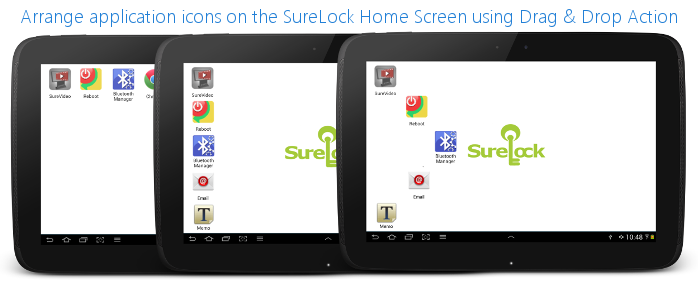
Relocate Application Icons on SureLock Home Screen using Drag & Drop Action

By 42Gears Team
Applies to:
Product SureLock
Platform Android

SureLock now lets you create custom layouts on the Home Screen by rearranging the icon position using drag and drop action. This feature gives you the option to keep the icons arrangement simple or show off using innovative ways.

icon_relocation

Here's how you can enable the feature in SureLock:

  1. Access SureLock Admin Settings
  2. On SureLock Admin Settings screen, tap on SureLock Settings
  3. On SureLock Settings screen, tap and enable the Allow Icon Relocation option
  4. Tap on Done to complete and go back to SureLock Home Screen

Once back on SureLock Home Screen, tap and hold an icon to make it active (represented by green background) and use drag and drop action to place it on a desired location.

You can repeat the above procedure for landscape and portrait orientation. SureLock preserves separate icon arrangement for Landscape and Portrait modes.

Tip: After rearranging icons on SureLock, you can lock them to these positions by disabling the Allow Icon Relocation option. This also prevents end-users from making any further changes to layout.

For any other queries, send an email to info@42gears.com

“Written with expertise and passion to help you understand the topic better.”

4
42Gears Team – Content Author
Published on July 5, 2012

Subscribe to our newsletter

Stay updated with the latest news, articles, and resources on enterprise mobility.

Weekly articles
Actionable insights delivered once a week. No noise.
No spam
Your privacy matters. Unsubscribe anytime.