SureLock or SureFox
SureLock/SureFox for Android, you must be familiar with the Import/Export Settings feature which is used to configure the SureLock/SureFox Settings
To configure WiFi using settings file, follow the steps below:
1. Launch SureLock on any Android device.
2. Access the Admin Settings and go to Import/Export Settings.
3. Tap on Export to File and choose any location of your device to export the Settings File.
4. Once you have the Settings File
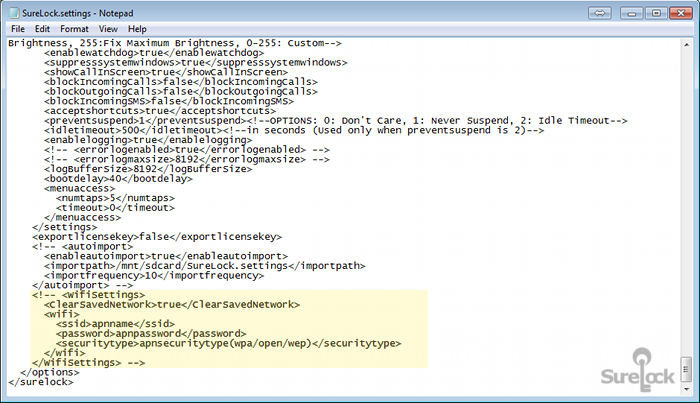
5. By default, the wifiSettings will be commented. Remove the comments and enter your WiFi credentials for use. Following terms have been used in the settings file:
- ClearSavedNetwork: If the value is true, SureLock/SureFox will clear all the saved WiFi networks from the device.
- ssid: Enter the apn name of your WiFi network
- password: Enter the password for your WiFi network
- securitytype: Specify the security type of your WiFi network
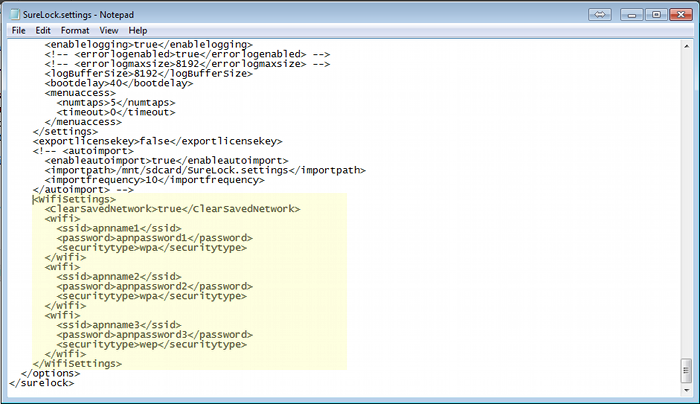
Tip: You can configure multiple WiFi networks also in a single settings file between