| Applies to: | |
| Product | SureLock / SureFox / SureVideo |
| Platform | Android / Windows 7 & 8 / iOS |
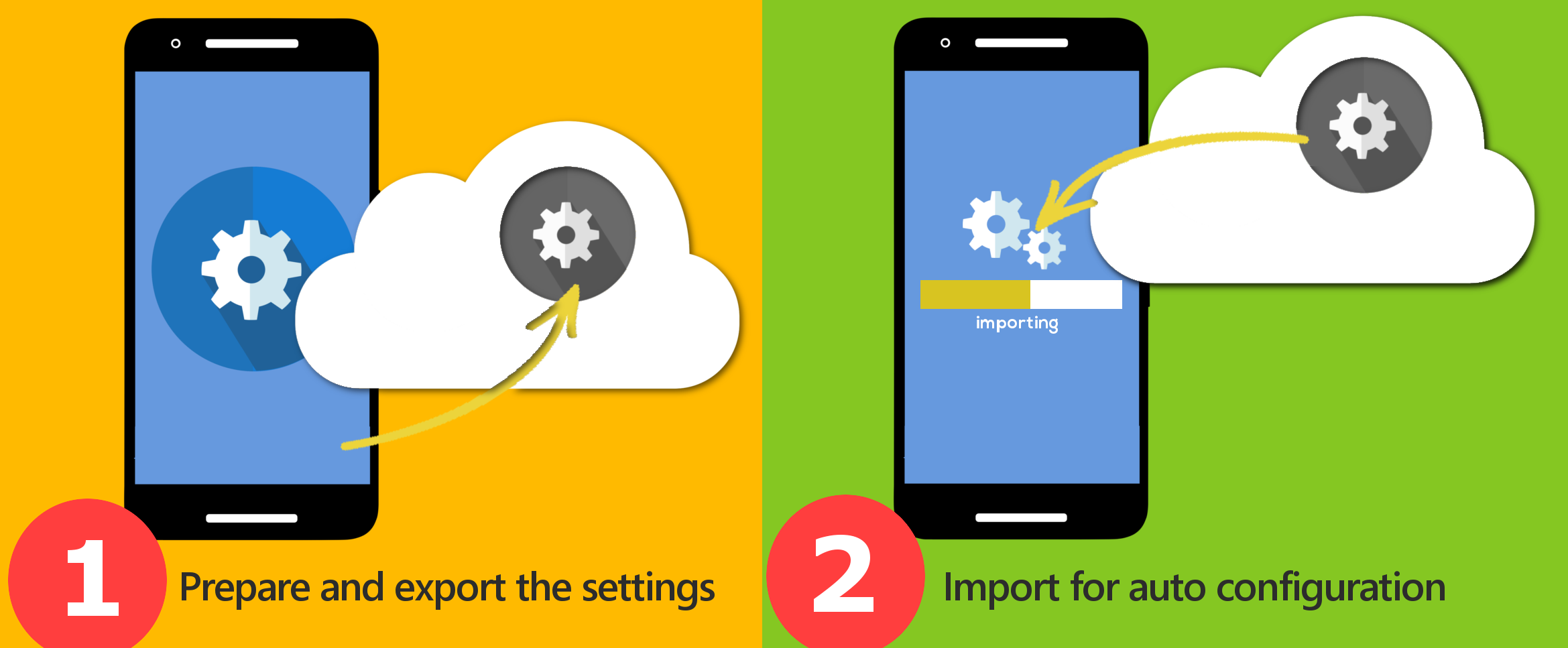 1. Prepare and export the settings file:
1.
2. Once you have finished the configuration, Go to Import/Export Settings
3. If you want to activate SureLock/SureFox/SureVideo on your devices automatically, go to Advanced Settings under Import/Export Settings and enable Export Activation Code
4. Tap on Done
5. Under Export Settings to export your configuration settings, select from the following options:
- Export to File - The settings file is exported to the SDCARD's root folder with a .settings extension such as SureLock.settings and SureFox.settings. You can export the file to any location on device storage.
- Export to Cloud - The settings file is exported to the cloud with a unique Cloud ID.
 Import from Cloud
1. On SureLock/SureFox/SureVideo Settings Main Menu, tap on Import/Export Settings
2. On Import/Export Settings screen, tap on Import From Cloud
3. On Import Settings from Cloud screen, enter the Cloud ID or select it from the Cloud ID History
4. Tap on Import
5. On successful import of settings
 Pushing the Settings file
 Over The Air (OTA) Provisioning:
1.
2. Configure the Automatic Import File
Note: Make sure the settings file name matches the automatic import file configured.
Tip: Visit Import/Export Settings->Periodically Check to modify the periodicity after which SureLock/SureFox/SureVideo

Read more about our products: