Remote Manager has features to access the Windows Mobile device from the desktop. You can use Remote Manager to access window properties, reset device or capture device screenshots.
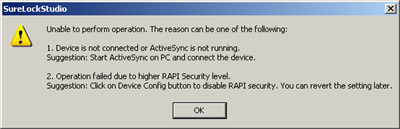
The above features cannot be accessed if RAPI (Remote API) security is enabled on the device. Attempting to perform any remote operation with RAPI disabled will bring up the following screen in SureLock Studio.

RAPI Security error
As stated in the message if the error is not due to problem in ActiveSync connection, then it's mostly due to RAPI security setup on the device. To use the Remote Manager features the RAPI security can be disabled on the device. This should be done only for development and testing purposes only.
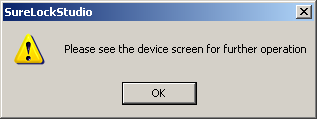
Remote Manager provides an option to disable the RAPI security. On the Remote Manager screen, click on Device Config button. You should see the following message.

Device Config Message on desktop
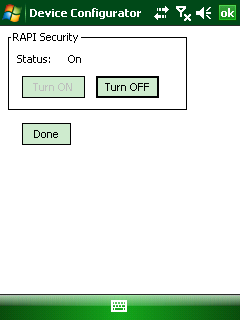
As mentioned in the above message, look at the device screen. You should expect to see the following.

Device Configurator on device
On the device, Tap on Turn OFF button to disable RAPI Security. The status text on the device screen will change to Off. Go back to Remote Manager screen in the SureLock Studio on desktop and those features should work without any problems.
Once the SureLock has been tested you can Turn ON the RAPI security again.