How to change the User Agent on SureFox browser

By 42Gears Team

User agent is a browser feature which determines how the browser identifies itself while requesting for information on the web. It also affects the behavior of web pages displayed on your web browser. For example, many websites have a lighter version specially designed for mobile platforms. However, this might not be desirable always. The good news is that this behavior can be fixed by changing your browser's user agent.

SureFox provides an easy way to change its User Agent to emulate any browser of your choice. Just follow the steps below to manage your user agent:

1. Launch SureFox and go to the admin settings using your password

2. Tap on Browser Preferences

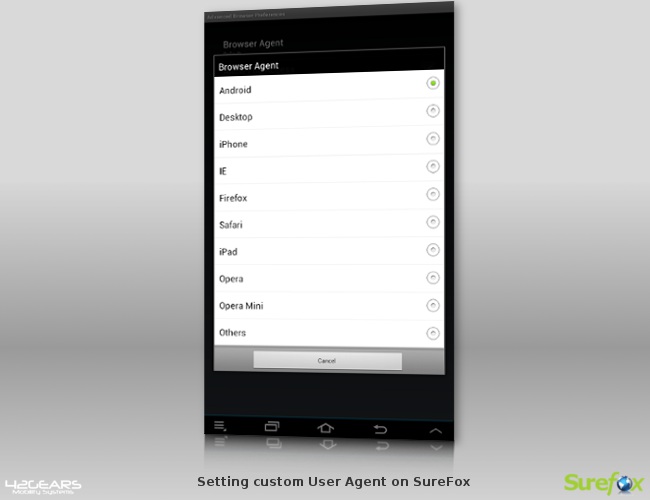
3. Scroll down to Advanced Settings and tap on Browser Agent. You will see a screen like below:

User Agent screen on SureFox

User Agent screen on SureFox

4. SureFox allows you to select any browser agent from a list of commonly used browsers.

How to set custom User Agent on SureFox:
To set a custom user agent, tap on Others. A dialog box will open where you can enter the custom user agent. You can find the user agent of your desired browser by visiting http://wiht.link/wmuseragent. Copy the exact user agent string in the dialog box and press OK to save the settings.

Once done, the new browser agent will be used by SureFox.

To know more about SureFox, click here

To learn more on how to secure and manage Android, iOS and Windows Mobile/CE devices efficiently, visit us at www.42gears.com

“Written with expertise and passion to help you understand the topic better.”

4
42Gears Team – Content Author
Published on February 13, 2013

Subscribe to our newsletter

Stay updated with the latest news, articles, and resources on enterprise mobility.

Weekly articles
Actionable insights delivered once a week. No noise.
No spam
Your privacy matters. Unsubscribe anytime.