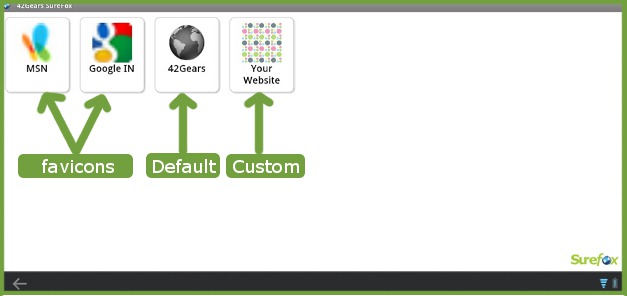
SureFox now allows you to show custom icons for "allowed websites". Custom icons can be of three types- favicon, default icon or custom image. Here's a sample screen to give you an idea of what you can do with your SureFox:
Details of SureFox Custom Icon Types:
Favicon:
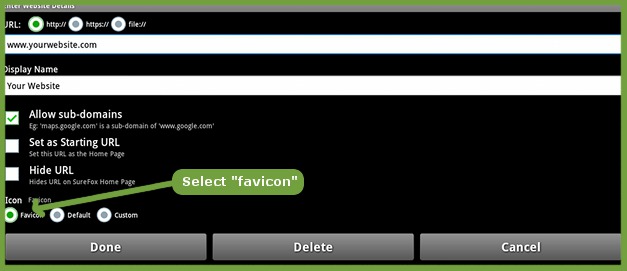
favicon fetches the custom icon from the allowed website dynamically and displays the same in SureFox.
Default Icon:
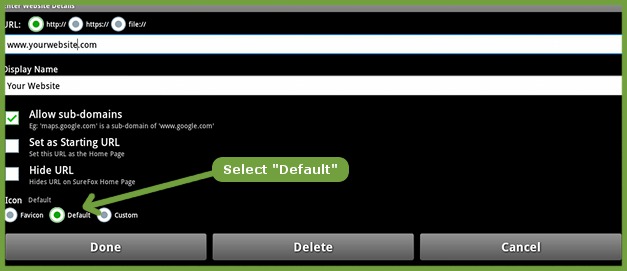
Default icon displays a default globe icon for the allowed website you have selected
Custom Icon:
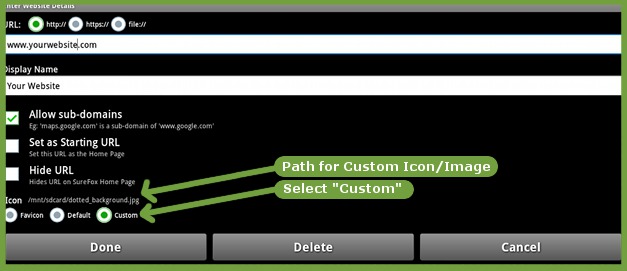
Custom icon allows you to display any image type as a thumbnail image for the selected website. Tap on "Custom" to launch file browser and select the image file of your choice. (Note: You can manually specify a local image path or an image over internet too. For Ex.: http://www.site.com/image.png)
After making the required changes in "Settings", tap on "Done" button to apply the changes and that's it. You are done with customizing the display of SureFox.
Author: Panshul Srivastava
42Gears Mobility Systems
To learn more on how to secure and manage Android and Windows Mobile/CE devices efficiently, visit us at www.42gears.com