How can I remotely delete files on my Android tablet or smartphones?
You might have a need to delete files or folders on multiple Android phones or tablets. It becomes even more challenging if you don't have physical access to the devices. In either case, you might want to delete the files with minimum work.
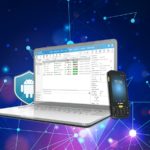
SureMDM allows you to remotely execute Linux commands on Android devices. You can create a script job and deploy the job on all devices remotely with a single click.
Once the job is created, you can select all the device and apply this job to them. SureMDM will make sure that the job is pushed to the devices as and when they come online.

Delete files and folders on remote Android devices
Script job for deleting files will look something like:
rm /sdcard/myfolder/myapp.apk
where /sdcard/myfolder/myapp.apk is the full path of the file to be deleted.
Just like rm command, other Linux commands can similarly be executed on remote devices.
To know more please visit SureMDM product page.
Choosing a Mobile Device Management Vendor (Free whitepaper)
WhitePaper: Choosing a Mobile Device Management Vendor
You can download the whitepaper from Resources section. The whitepaper contains a checklist about how to choose a mobile device management vendor that addresses your current requirements and any potential future concerns as well.
How to know Android Applications Permissions
Android OS runs applications in separate sandboxes which means an application cannot directly access data or other resources belonging to another application. Rarely an application can do everything on its own. They usually need resources belonging to other applications installed on the system.
Android provides additional capabilities to applications by means of "Permissions". An application has to request for a permission before accessing data/resources shared by another application. For e.g. if an application wants to read contacts stored on the phone, the application developer must add android.permission.READ_CONTACTS permission to the manifest file of the application.
Before you download and install an application from the Android market, you can view all the permissions it is requesting for. One needs to be careful the kind of permissions that the applications ask for. Its a red flag if a puzzle game wants access to your location and also wants to read your contacts.
This problem becomes even more serious for companies. Your employees might be installing applications directly or through the Android market without any regard to what those applications could do. If you are an IT guy, you have the responsibility to make sure the corporate business data in protected from going out to unknown parties. But what can you do?
SureMDM has a cool feature that shows complete list of applications installed on the Android device, along with all the permissions that those apps are asking for.
Steps:
1. Login into the SureMDM Web Console,
2. Select your smartphone or tablet from the device list.
3. Click on the Apps buttons to see list of installed apps on the device.
4. Select an Application and Click on Permission button. Screen similar to the following will popup.

Angry Birds Permissions
Above snapshot shows what permissions are required by Angry Birds when it runs on your Android smartphone or tablet.
Conclusion
As a user we need to be careful about what the third-party applications might be doing on our phones. This becomes even more important for the enterprises in order to protect and safeguard the business information.
42Gears Mobility Systems is a leading vendor of mobile device management and security products. To know more about our game-changing approach to mobile device management visit http://www.42gears.com.
Block users from running unallowed applications on Samsung Galaxy Tab 10
So your company has decided to give away tablets like Samsung Galaxy Tab to the employees for use for business purposes only. Well... you may be in for a surprise. As soon as they lay their hands on the tablets, the users are going to head straight to Android Market and start downloading cool free games and other applications. Soon the device will be full of useless applications resulting in performance degradation. Moreover if the tablet has a data plan, downloading such applications can cost you lots of money for data charges.
Android Tablets -> Unproductive Employees -> Unhappy Boss
SureMDM provides a very useful feature whereby you can remotely lockdown the android tablet (as well as android smartphones). Locking down means you can individually lock the installed applications and also disable the user from installing new applications. Whenever a user tries to launch a locked application, the user will be asked to enter a PIN (as configured by the administrator). No PIN is asked for if the application is not locked.
Android Tablets -> Locked by MDM -> Productive Employees -> Happy Boss
Use SureMDM to keep your employees productive which will surely make your boss happy.
Crash Reporter for Android application developers
Programs crashing post release is not uncommon. Such situations are also not easy to handle as they might be occuring under certain conditions which might not easy to replicate. Crash dumps come in handy to solve such field issues.
Wikipedia defines crash reporter as "an application whose function is to report crash data to a third party, usually to the party responsible for the crashed program. Crash reports often include data such as stack traces, type of crash, and version of software. This information helps software developers to diagnose and fix the underlying problem causing the crash."
Imagine a Logistics Company who has deployed their newly developed "Proof of Delivery" (POD) application. The application was "sufficiently" tested in-house where it went through multiple validation cycles. It was then commissioned for use on hundreds on Android based devices going into the hands of the mobile workers.

Crashed Android application
Everything was working fine until one day a report came in coming in from the field stating that the POD application was crashing intermitently. There was apparently no way to reproduce the behavior consistently. The issue was escalated to the development team which got ready to look into the "bug". But there was problem. This particular phone was hundreds of miles away and there was no way the dev team could figure out what was happenning to the application. If only they could get hold of the stack trace when the application crashes. That was not possible as the end-user was a NOT programmer or a techie who could pull the crash report from the phone and send it to the development team.
Thats when the development team got an idea. They remembered when the devices were rolled-out, the IT department had installed a Remote Mobile Device Management solution to keep an eye on the devices in the field. This MDM system was actively being used to gather various device health information, to push new software updates, to secure and to track the phones.
IT manager knew about a feature in the MDM solution that could monitor any application on the device and could report issues incase the application failed. MDM was asked to monitor the POD application. The user was then asked to launch it.

Crash Report in SureMDM
A few hours later the application crashed, but this time MDM caught the crash, collect the crash report with stack trace. This crash report was provided to the development team. And voila! the problem was fixed in no time by the smart developers. New version of the POD application was re-deployed on the phones remotely using the MDM solution.
Conclusion
Crash Reporting is an important feature which ensures any serious issues with the application don't go un-reported. Sometimes such crash reports are the only way to diagnose and fix the problems.
Wondering which MDM solution supports Crash Reporting for Android devices. Thats SureMDM from 42Gears Mobility Systems. Now you can not only control and manage the mobile devices, but also the mobile applications when they run into problems.
SureMDM Product Handouts
Software product handouts work and here is the one we created for SureMDM. Note: These are not high resolution images.
New security feature for android device management using SureMDM
SureMDM adds another compelling security feature for android device management. IT administrators can now restrict users to access only approved applications.All other applications and system settings are password protected. This feature also blocks the user from installing any third-party applications.

Installed application list
Using this feature is very simple. Installed application list of a device now also shows which application packages are LOCKED. Administrators can select any package and LOCK/UNLOCK them from console. Once done, launching these applications will prompt for a password, failing which user cannot access the application.

Password prompt for locked application
To try android application lock down and tons of other SureMDM features, register for a free account at http://www.42gears.com.
Managing and controlling applications on corporate mobile devices
SureMDM now has a brand new feature that provides a view into what all applications are installed on the phone. Go to the SureMDM web console, select the phone and click the Apps button the toolbar. Whats more, you also uninstall any unneccesary applicaitons right from the web console even if the actual mobile device is out in the field.

List of installed applications on the phone
Application protection, application locking, software inventory reporting etc will be added in the next release.
Use SureMDM and take control of your corporate mobile phones. You can learn more about SureMDM at http://www.42gears.com.
Android and password policy enforcement using SureMDM
Enterprise use of Android devices is on the rise these days. Much of it is due to the availability of new security features (Android 2.2+) such as the ability to enforce password policies across Android devices and to remotely wipe any Android devices that become lost or compromised.
Suppose all employees in your organization have been given latest Android phones. Being the IT guy you are asked to make sure all those Android phones adhere to corporate security policies. If you have a few hundred devices to manage, applying password policies manually on them might not be a good idea. In fact it is a bad idea
.
![]()
SureMDM provides a much easier method for applying password policies. You just have to create a Password Policy job. You can configure various parameters such as minimum password length, password quality (numeric, alphabetic, alphanumeric), time lapse before device auto-locks, maximum number of failed password attempts before device wipes itself.

Password Policy job in SureMDM
Once the Password Policy job is created, you can apply it at once on any number of Android phones. The job is pushed to all phones that are connected with the SureMDM server. Offline phones will receive the job when they connect with the server next time.
The password policy job is processed on the phone by SureMDM device agent that brings up Android password UI. The user is asked to set the password according to the password policy. If the user dismisses the password UI, it will be perodically asked for the same until the policy is complied with.
Conclusion
SureMDM provides an easy to use feature that helps IT teams to quickly apply corporate password policies to hundreds of Android phones across the enterprise. To try this and many other features register for SureMDM account for FREE.