
SureLock
Lock Android Tablet or Smartphone to a Single Application or Single App Mode
People often ask how to run only one app on Android devices, or how to lock an Android device to run only one app. Google searches like “Android allows only one app” and “Android tablet lock to one app” are very popular, which shows that everyone wants an easy way to secure their devices. The…
Read MoreAndroid equivalent of iOS Guided Access Mode
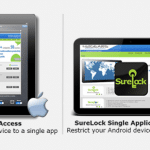
iOS Guided Access Mode Guided Access Mode was introduced in iOS 6.0 and is used to help device user stay focused on one application while using an iOS device. This feature limits the iOS devices to run just a single application. Guided Access can be used to achieve the following -. Restrict iOS device…
Read MorePrevent installation of applications (APKs) on company-owned Android devices
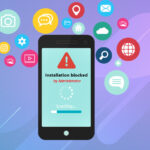
Android users can install apps on their phones or tablets using two methods. The first method is to sign up for a Google Play account and install apps from Google Play. The second method is to sideload the app. Sideloading involves downloading the Android App APK file from the internet or copying it from the…
Read MoreA guide to blocking outgoing and incoming calls and texts to improve field-worker productivity

If you notice people at work sending and receiving calls and texts throughout the day, you’re witnessing a worldwide trend. Unfortunately, the issue won’t go away on its own. Unless managers learn how to block outgoing calls, workers may be tempted to make calls throughout the day. It stands to reason that worker productivity will…
Read More42Gears Teams Up With Isansys LifeCare In The Battle Against COVID-19

The Novel Coronavirus (COVID-19) has changed many industry sectors forever. Being in the epicenter of an unprecedented global pandemic, the healthcare sector is among the hardest-hit. As the number of COVID-19 positive cases increases everyday, a staggering number of patients need to be hospitalized, and many of them require ventilator assistance. This, in turn, puts…
Read MoreFreight Drivers Are Secret Pandemic Heroes. But They Need Help.
Everyone can be a hero in the COVID-19 pandemic in different ways, but we can’t always see it. For most people, being a hero means staying home and preventing the spread of the virus. Medical professionals bravely put themselves in close contact with COVID-19 patients, and grocers ensure that those in quarantine have food to…
Read MoreTurn Smartphones Into Dedicated Mobile Hotspots Using 42Gears MDM Technology
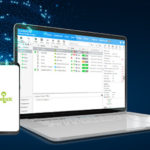
If you need to provide a Wi-Fi connection via hotspot, but don’t have access to dedicated devices (such as Mi-Fi devices), 42Gears can help you find a workaround, bringing critical resources to those who need them. Here’s how, and why it’s so important. Hotspot devices serve as mobile Wi-Fi hubs. Hotspots can access data from…
Read MoreSystem Requirements for SureLock, SureFox and SureVideo
42Gears’ lockdown products for Android devices such as SureLock, SureFox, and SureVideo can quickly turn Android devices into dedicated-purpose tools, like a public kiosk, a POS system or even portable digital signage. For these applications to seamlessly run on an Android device, there are few system requirements: Android OS – Android Ice Cream Sandwich –…
Read MoreAndroid Screen Pinning – Turning Consumer Devices into Single Purpose Tools
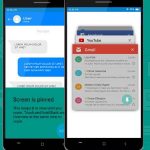
Screen Pinning or App Pinning feature was introduced by Google for Android devices (Lollipop and above) to lock them down into single application mode. The feature allows the user to lock the device screen and show only a specific app, automatically restricting access to all other functions of the Android device. Once an app is…
Read MorePlugin Apps in SureLock for Android
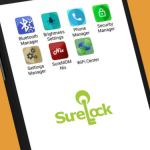
SureLock comes with six built-in plugin apps. These light weight function-specific plugin apps do not show on the default device home screen and reflects only within SureLock. SureLock admin can approve these apps for the device users using Plugin App tab under Allowed Applications. Following are the six Plugin Apps of SureLock: – WiFi Center…
Read More