42Gears Speaks
25Jan/120

Mobile Technology in Restaurant Business

Mobile Technology in Restaurant business

Use of tablets is on the rise everywhere. Even the restaurant industry is finding great potential in using tablets with an aim to increase revenues, increase customer loyalty and provide faster service and response times.

Restaurants have started to deploy tablets to take orders and entertain guests while they wait for the order to be delivered. They can play games or update their social status on Facebook or Twitter and let their friends know the food they are enjoying. And at the end of their meal, payments can be processed quickly with a credit-card reader attached to the tablet.

Advantages are enormous. It has been observed that people order more food if they can instantly order it without waiting for the server. Customers can view the full menu and tap on the food items that they want to order. No need to wait for the server to take your order. Order information is instantly transferred to the kitchen thereby reducing ordering time. Server’s job is to only deliver the food to the table.

Tablets also make it possible to deliver visuals (photographs and videos) of the food and beverages being served by the restaurant. The customers get a first-hand idea of what they are going to get. They probably can also see reviews of the items by the past customers.

Besides the imminent benefit to the guests, the restaurant can enjoy more benefits. Since the orders are digitally accepted, the order information from all customers is collected in a structured way and is stored into a database. This data can be used later for statistical purposes (say to accurately determine which food is in maximum demand on Friday evening). Technology enables Real time information collection and processing in real-time.

Use of mobile technology is surely going to benefit the $604 billion restaurant industry, helping both the customers and the restaurant businesses.

42Gears Mobility Systems is the leading vendor of mobility managament tools helping companies manage and secure their fleet of mobile devices such as Smartphones and Tablets. Learn more about our products.

Go to Home


21Jan/120

HVAC Field Service Management Goes Mobile

Many of our customers are in the business of HVAC Field Service Management. Recent trend in this domain has been the increase in use of mobile technologies, including tablets and Smartphones bringing in efficiency and accuracy in the process.

HVAC stands for Heating, Ventilation, and Air Conditioning. Regular HVAC maintenance is essential to ensure that HVAC units do not break down and that they operate at maximum efficiency. Field technicians are assigned the service jobs by the main office which they execute at the customer’s premise (house, office etc).

A typical situation is like this. A service call is received from a customer. Staff at the main office dispatches the job to an appropriate field technician. The technician visits the site, performs his job and updates the jobs status as soon as it is completed. Staff sends the invoice to the customer and the transaction is completed.

Use of technology increases the efficiency of the field technicians and reduces manual errors that are introduced by paper-based process. Say a technician is using an Android tablet with a field service application. Office staff can easily dispatch the job to the technician over the air. Technician sees a job notification on his tablet. The job is picked. As soon as the job is finished, the technician updates the job status as "completed" on his tablet. The new job status is transferred to the back office in real-time where accounting system automatically generates an invoice for the customer.

There are enormous advantages for using mobile technologies in the area of field service management. Technicians quickly receive all the information they need including job history before they start their work. Field force can be easily tracked on the map using GPS which allows the office staff to efficiently allocate new tasks to the technicians out there.

Our products SureLock and SureFox provide an environment for secure and effective deployment of field management software on mobile devices including tablets and smartphones. To learn more about SureLock and SureFox, please visit http://www.42gears.com. Free trial versions are also available.

Go to Home


19Jan/120

How to exit Single Application Mode in SureLock?

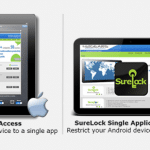
Single Application Mode is a powerful feature in SureLock (Android version). In this mode SureLock allows one and only one application to remain in the foreground all the time. Any attempt by the user to access any other application or functionality is blocked. Actually the user cannot even access anything other than the allowed application. Single Application Mode strictly locks down the Android tablet or Smartphone. Side-effect of this feature is that it does not leave an easy way for the administrator to quit SureLock or to modify its settings. But there is a solution.

Steps to quit SureLock Single Application Mode:

1. Power Off the device and turn it ON again.
2. After power up, SureLock will start automatically
3. If 'Single Application Mode' is set, SureLock will wait for 10 seconds before launching the allowed application.
4. Quickly tap on the back button 5 times
5. SureLock Password dialog is displayed. Enter the password to go to SureLock Settings screen. SureLock Settings screen has an option to quit.

To learn more about SureLock, please visit http://www.42gears.com/surelock/

Go to Home


Tagged as: No Comments
9Jan/120

How to install Non-Market applications on Android

A very common problem faced by Android users is how to install applications on your Android phone which either are not available in Android Market or just that your Android Device does not have the Android Market installed on it.

Just follow the steps below to get your favorite non-market app directly on your Android:

  1. Go to the 'Settings' page
  2. Click on 'Applications' tab
  3. Search the option 'Unknown Sources' allowing you to install non-Market applications and enable the checkbox
  4. Accept the warning which states the vulnerability of apps from unknown sources (Just make sure you install trusted applications only)
  5. Finally, all you need to do is just copy the package file (.apk) of the application you want to install to any location of your memory card and launch the setup using a file browser. (File browsers are freely available and are needed to access the files on your device's memory)
    Allowing App installation from unknown sources

    Allowing App installation on Android Device from unknown sources

NOTE: Some Network Carriers might disable the option to allow non-market applications for security reasons. Please consult with your operator in order to get more details regarding the same.

Author: Panshul Srivastava
42Gears Mobility Systems

To learn more on how to secure and manage Android and Windows Mobile/CE devices efficiently, visit us at www.42gears.com

Go to Home


6Jan/120

How to embed Flash objects in html webpages

Plain html web pages is no big deal but to make a webpage feature-rich, you might want to use HTML5, the new standard of web pages or you can embed Flash objects to implement high quality multimedia content in your web pages. SureFox supports rendering of HTML5 as well as Flash content.

There are many ways to embed flash into your web pages, however here is the simplest way to do it:

Embedding Flash in html page

Embedding Flash in html page

The highlighted code needs to be inserted as:

<object classid="clasid:D27CDB6E-AE6D-11cf-96B8-444553540000" codebase="http://download.macromedia.com/pub/shockwave/cabs/flash/swflash.cab#version=7,0,19,0" width="100" height="330" id="yourfile" >

<param name="movie" value="yourfile.swf" />

<param name="quality" value="high" />

<param name="bgcolor" value="#000000">

<embed src="yourfile.swf" quality="high" bgcolor="#FFFFFF" width="400" height="400" name="yourfile" align="" type="application/x-shockwave-flash" pluginspace="http://www.macromedia.com/go/getflashplayer">

</embed>

</object>

where yourfile.swf represents the flash file to be embedded and the display dimensions can be set via width and height attributes.

Finally, upload all the files(html, flash, etc) to web server or your device's memory from where you want to access the webpage.

Note: You can refer the post on how to use local web pages in SureFox by clicking here

To learn more on how to run your web-applications on Android Tablets & Smartphones in Kiosk mode, visit us at www.42gears.com/surefox

Author: Panshul Srivastava
42Gears Mobility Systems

Go to Home


Tagged as: , No Comments
5Jan/120

Viewing local web pages in SureFox Browser

SureFox allows you to display local html files in Android Phones and Tablets. Just follow the steps below to use SureFox kiosk browser in local-mode

  1. Copy all the html content(html files, images, flash files, css, etc) into the SDCARD on the device
  2. Launch SureFox, enter the Admin mode and go to the 'Allowed URL' setting
  3. Enter the URL strictly as : "file:///sdcard/path/file.htm" where path specifies the local folder's location on your SDCARD where the actual file is located.
  4. Enter the display name for the file you would like  and click OK to save the settings

An example is displayed below:

Adding Local Files

Adding Local Files

This method is highly useful for displaying custom web pages in Kiosk Mode without worrying about internet connectivity on the device.

To learn more on how to run your web-applications on Android Tablets & Smartphones in Kiosk mode, visit us at www.42gears.com/surefox

Author: Panshul Srivastava
42Gears Mobility Systems

Go to Home


31Dec/110

How can I remotely delete files on my Android tablet or smartphones?

You might have a need to delete files or folders on multiple Android phones or tablets. It becomes even more challenging if you don't have physical access to the devices. In either case, you might want to delete the files with minimum work.

SureMDM allows you to remotely execute Linux commands on Android devices. You can create a script job and deploy the job on all devices remotely with a single click.

Once the job is created, you can select all the device and apply this job to them. SureMDM will make sure that the job is pushed to the devices as and when they come online.

Delete files and folders on remote Android devices

Delete files and folders on remote Android devices

Script job for deleting files will look something like:

rm /sdcard/myfolder/myapp.apk
where /sdcard/myfolder/myapp.apk is the full path of the file to be deleted.

Just like rm command, other Linux commands can similarly be executed on remote devices.

To know more please visit SureMDM product page.

Go to Home


Tagged as: No Comments
29Dec/110

SureLock: The Ultimate Lockdown for Androids

Android Smartphones and Tablets provide everything your business needs and more importantly, much more than you need-multimedia capabilities your employees would love to misuse. Practically it would be really difficult to keep an eye on every enterprise-owned device. The safest bet is to lock down your Android tablets and phones using SureLock. With plenty of security options for your devices, it lets you provide the perfectly secure access to the devices at any point of time. Regressively tested on the most commonly used Android devices such as Samsung’s Galaxy Tab & HTC to name a few, SureLock provides a highly secure yet smooth UI to create the best lockdown for your device.

SureLock for Android Tablets and Smartphones

SureLock for Android Tablets and Smartphones

Prominent features of SureLock for Android are:

1. Runs only what is allowed, no trespassers allowed
2. Control access to WiFi, Bluetooth, Audio, Orientation settings and more
3. Single Application Mode- Ensures one application is running all the time, even after system reboot
4. Automatically launch applications at startup
5. Password protected access for administrators

Whatever be your device, wherever be your device, you can have complete peace of mind using SureLock. No more worries about device being used for unproductive purposes.

SureLock can be downloaded from Android Market or directly from the website. For trial and purchase related queries, visit us at www.42gears.com/surelock

Go to Home


27Dec/110

Choosing a Mobile Device Management Vendor (Free whitepaper)

WhitePaper: Choosing a Mobile Device Management Vendor

You can download the whitepaper from Resources section. The whitepaper contains a checklist about how to choose a mobile device management vendor that addresses your current requirements and any potential future concerns as well.

Go to Home


Tagged as: , No Comments
16Dec/110

Automatic Time Synchronization on Mobile Devices

A common problem with mobile devices is that their time and date gets out of sync with that of the server or the actual correct time. This can be an issue for applications which use time on the device for their calculation, storage or some logic. Incorrect time can also lead to inconsistency between device and server data which is not desired.

SureMDM provides a very simple solution for this time sync problem. You can apply a ‘Timesync’ job to the devices managed by SureMDM and that’s all, all your devices will automatically update their time with that of the server at the specified time intervals. Here’s how you can do it:

Steps
1. Login to SureMDM web console
2. Click on the Jobs tab on the left
3. Click on New->Windows Mobile->Nix Agent Settings->OK
4. You get the following screen on your SureMDM Console

Synchronize time on mobile devices with SureMDM

Synchronize time on mobile devices with SureMDM

5. Tick the time synchronization checkbox and select your preferred Periodicity interval
6. Click OK to save the job
7. Now select your device(s) or a Group of devices and click on ‘Apply’ button to open up the available jobs window
8. Select the Timesync job you just created and click on ‘OK’.

Sit back and relax, your device(s) are ready to update time on their own.

Author: Panshul Srivastava
42Gears Mobility Systems

Go to Home


Filed under: General No Comments